Piedmont PD
  • Celebrating Piedmont
  • StudentSpace
  • Piedmont PD
  • Lesson Ideas
  • News and Thoughts

Student Instructions: How  to Use Google Classroom 

9/12/2014

4 Comments

 
Picture
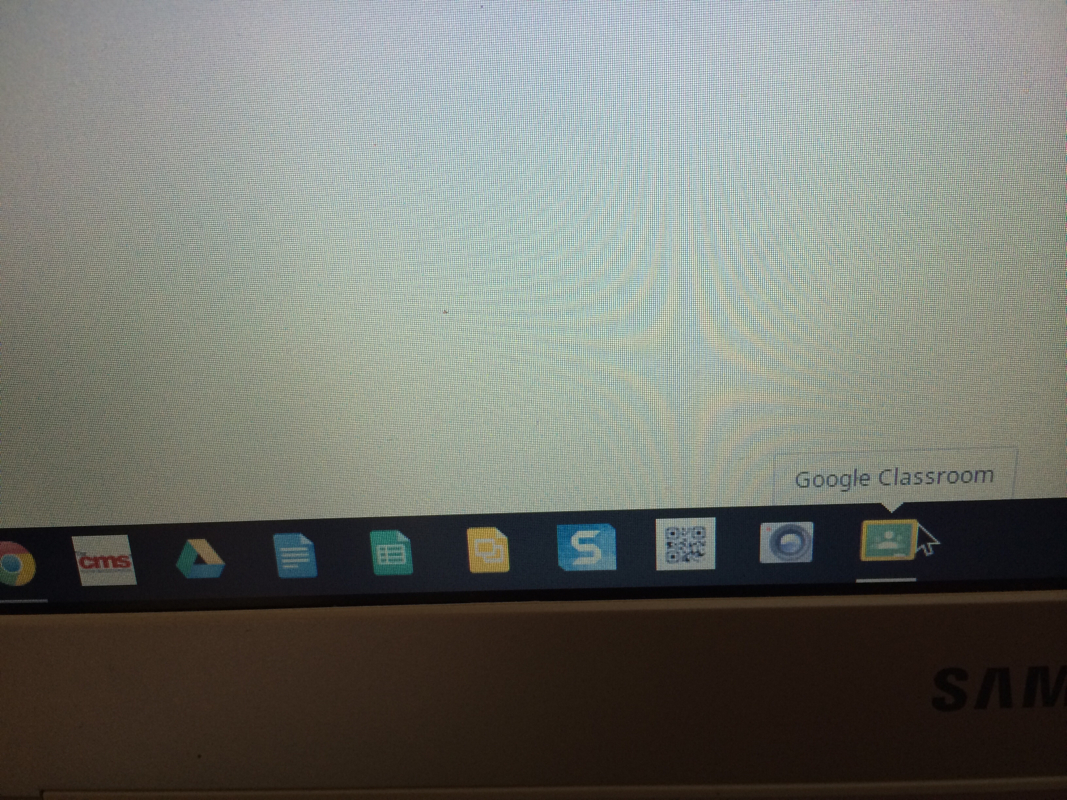
On a school chromebook? All you have to do is click the green chalkboard with the yellow outline at the bottom dock to go to classroom and you are automatically logged in.

How to Join a Google Classroom:

  1. Go to Classroom at classroom.google.com or click the icon as in the photo above.
  2. Log in as you would from a school chromebook.    First time logging into classroom? See below *
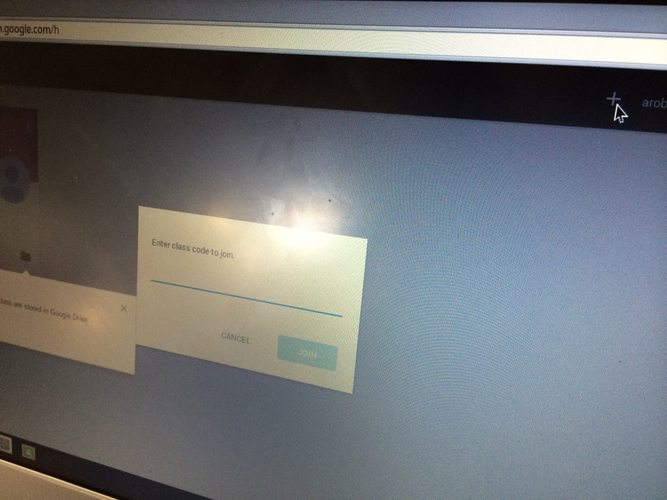
  3. From the home page, click the + icon.
  4. Enter the code that your teacher gave you in the box and click JOIN. (see photo below)

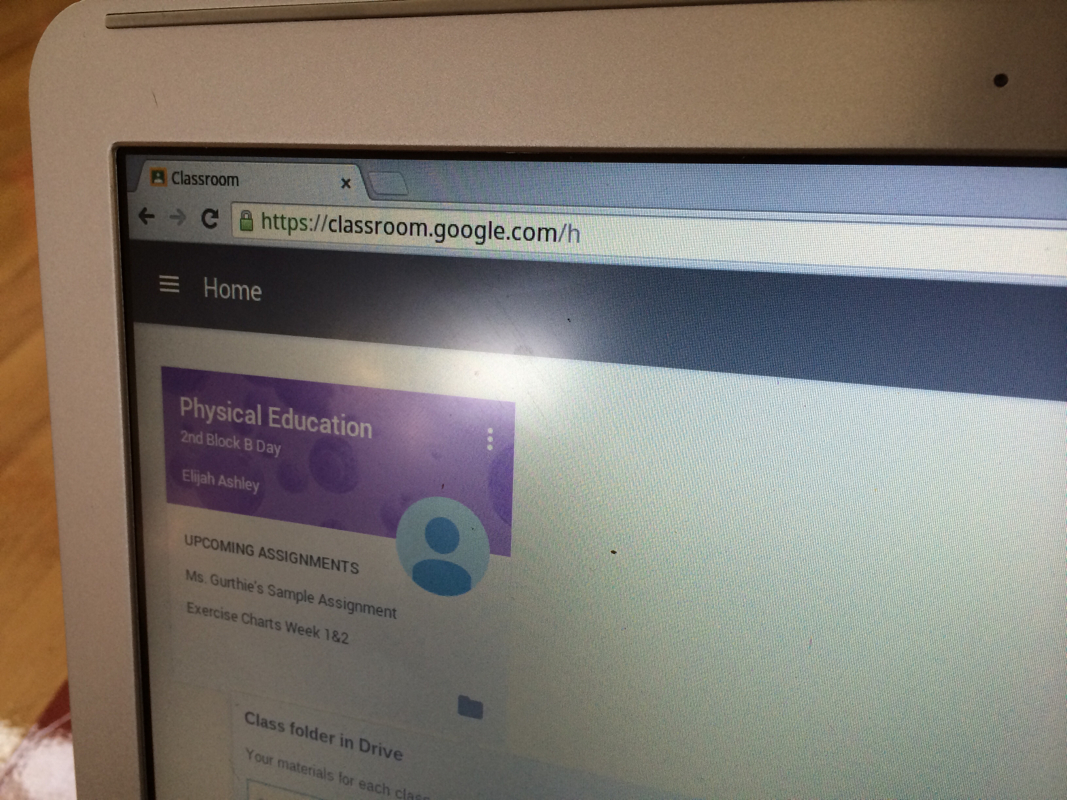
* first time logging in scroll down the "welcome" page until you see the box that says "I'm a student" Click it and then you will see the plus sign (a chalk arrow points to it!)
Picture
Click that plus sign and enter the code teacher gives you.
Picture

How to View and Submit Assignments in Google Classroom:


  1. Login to your Google classroom (same as chromebook login) at classroom.google.com
  2. Click on the name of the class you need if more than one class is shown.
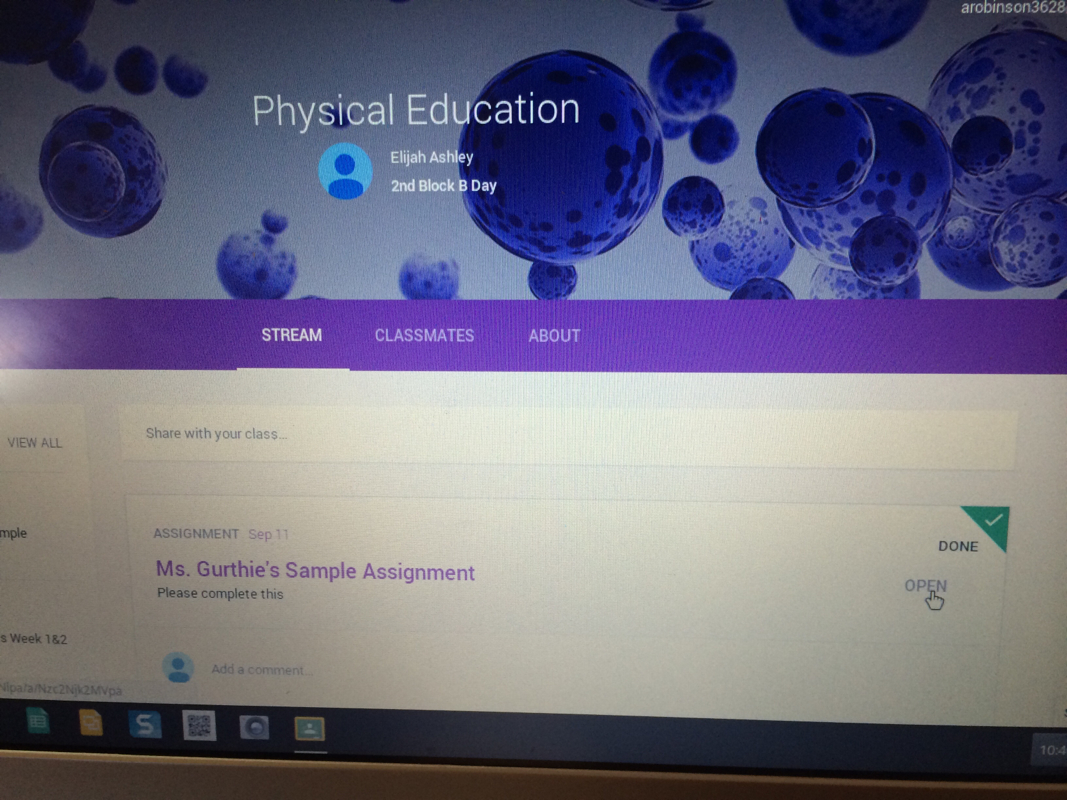
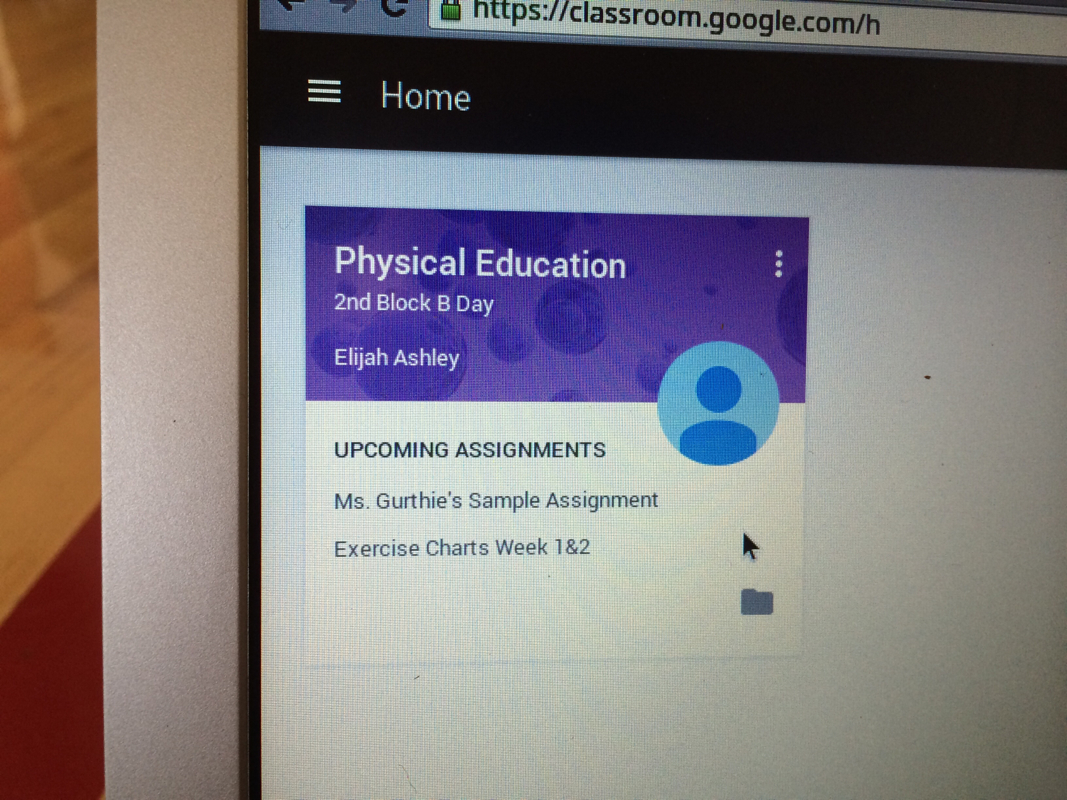
  3. Scroll down to the assignment you wish to complete.  DO NOT CLICK THE NAME of it in the stream -it is ok to click the name of the assignment if it is n the sidebar
  4. Click the box to the right of the assignment that says OPEN (do NOT click on the actual name of the document attached to the assigment yet!)
  5. Click the name of the attachment/s if any. If teacher has not included attachments,  follow the prompts you see to open our create your own attachments within Google Drive.
  6. Complete or edit the work as needed. It may take a moment for any attachments the teacher has made you to load and become editable. Be patient.
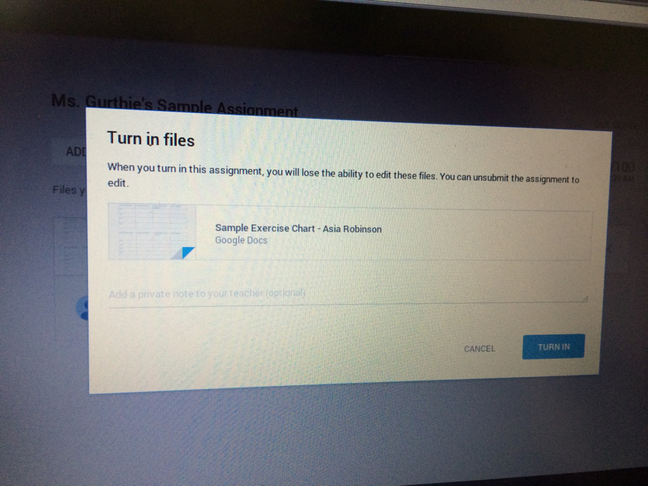
  7. Click Turn In (at the top right) to submit.
  8. Select Turn it In again if prompted.
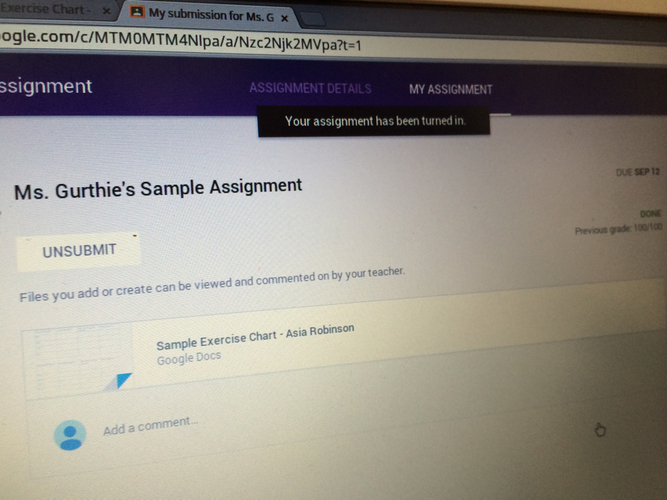
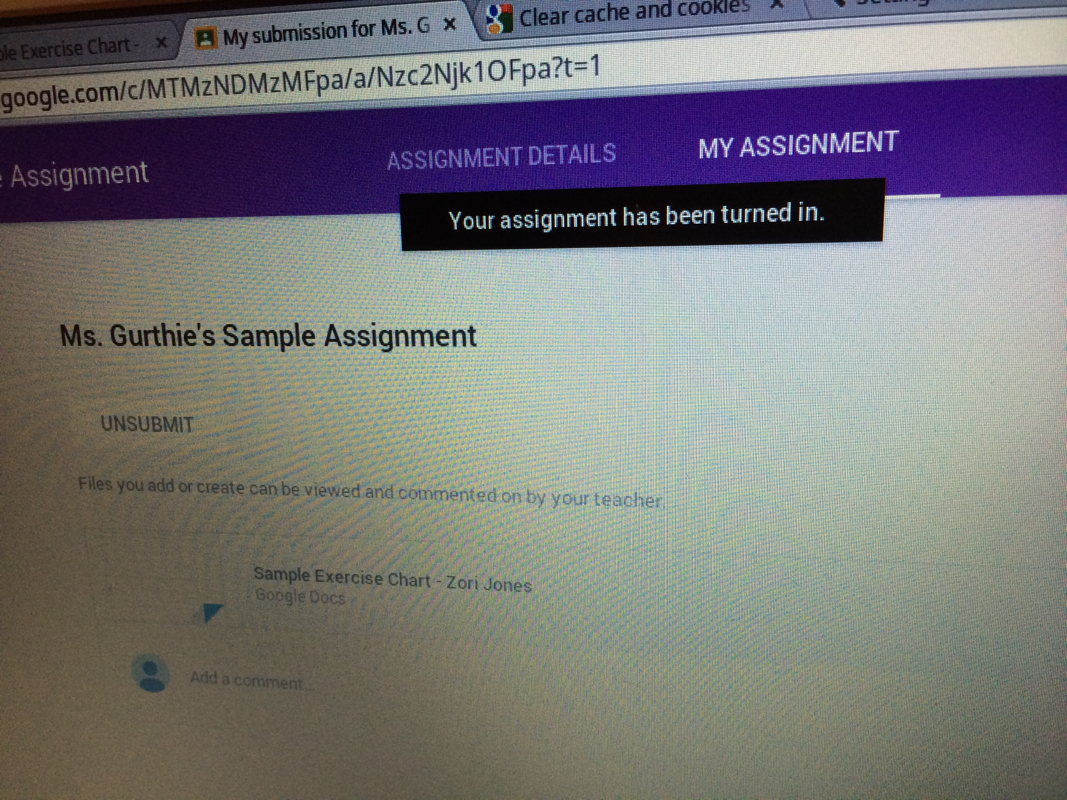
  9. You know you have done it when  you see a black bar across the top of  your screen with the message  saying you have submitted the assignment!

Note: After submitting an assigment, you will NO longer be able to edit the document! If you unsubmit in order to make changes AFTER the due date the work will now be seen as late.


Picture
Picture
Make sure you open the assignment by clicking the "open" box to the right of the assigment name. This will allow you to edit any files your teacher has included!
Picture
Picture
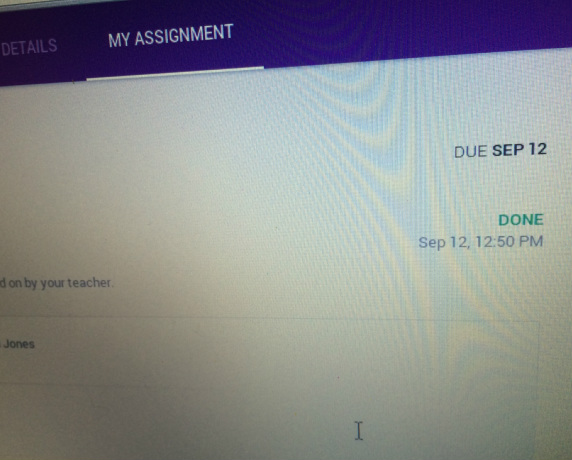
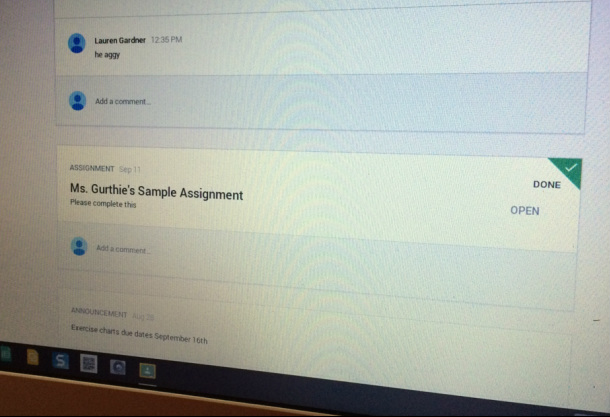
You Know you did it properly when you see the word "done"
Picture

Hints:

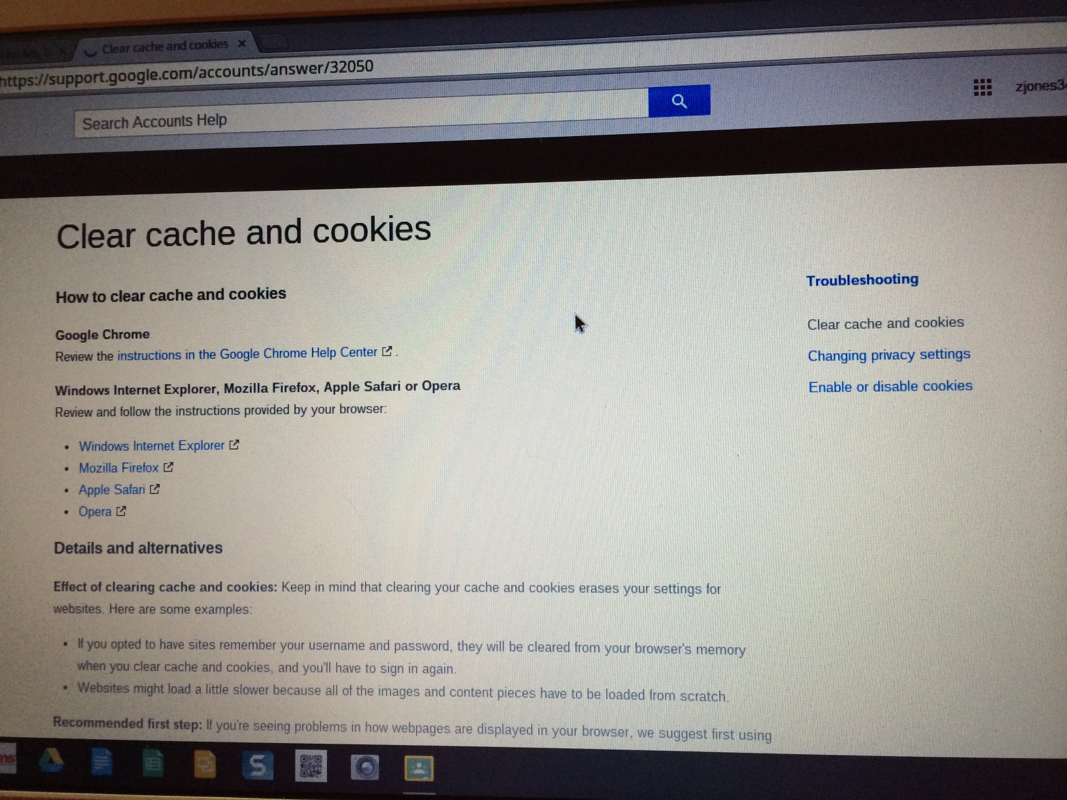
PictureIf weird things happen, you might need to go to History or settings of your browser and clear you cookies.

  • make sure you Log in to Google Drive using your SCHOOL (gaggle.net) email address
  • Your Google Drive and Google Classroom login is the same as your school chromebook login. 
  • Classroom is totally glitchy now so don't freak out if something doesn't work the first time. Wait. Re read these instructions. Refresh the page. it will get better and we are sending in suggestions each day.

Thank you for helping us test it out! This will all make an amazing story to tell your grandkids when you are old "back in my day we used to have to turn in assigments by writing on paper! I remember when we first got Google Classroom..."

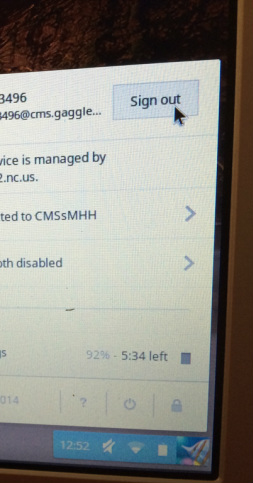
Dont forget to sign out:
Picture
Picture
Picture
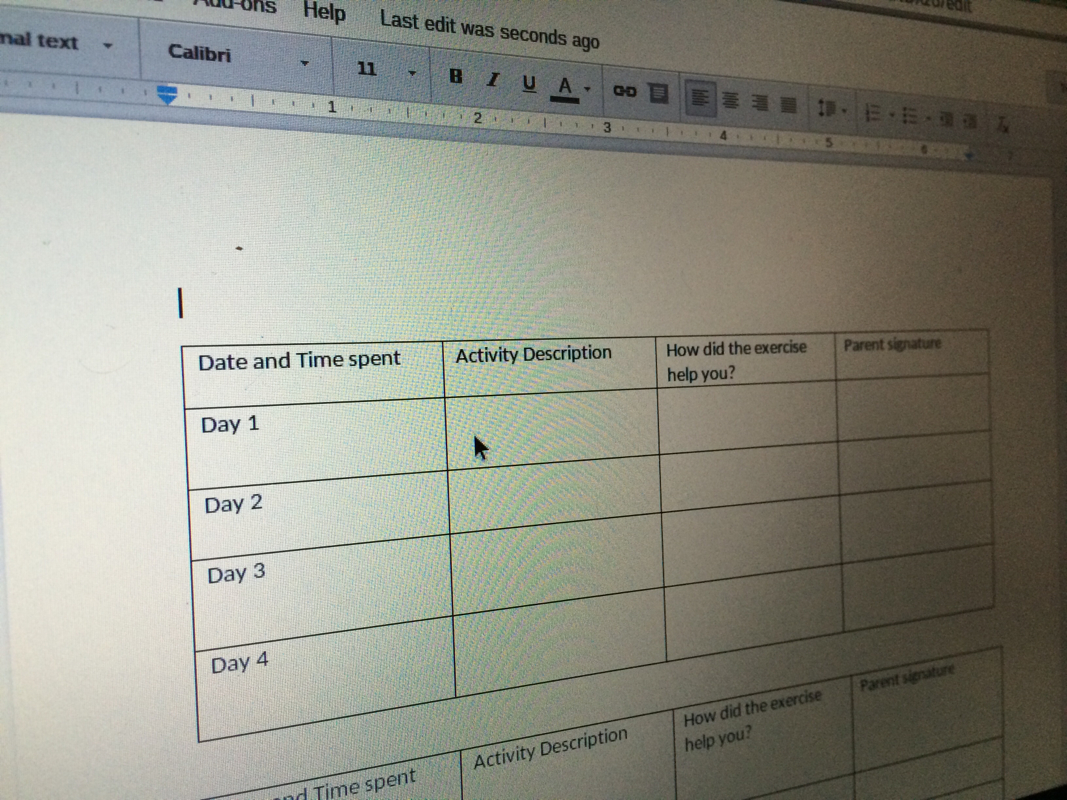
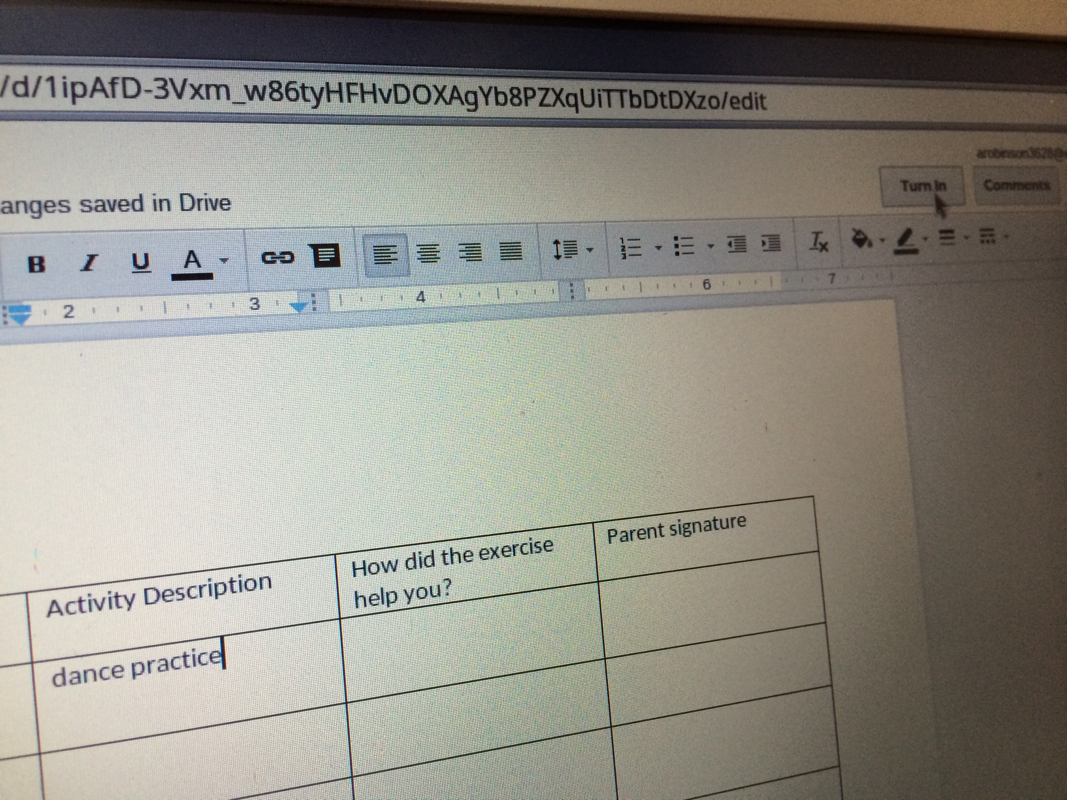
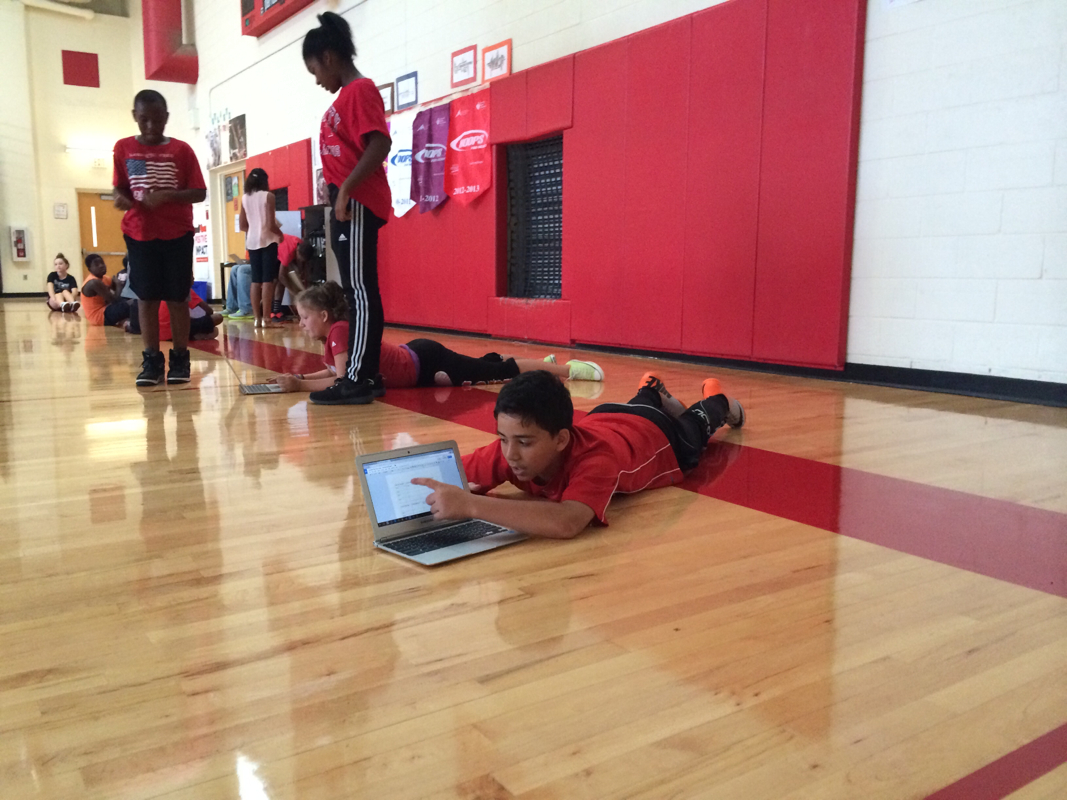
Your teacher may give you an assignment to edit or create a document as a group.
Picture
edit the document by waiting until the word processing toolbar loads and the curser moves and typing whatever you wish to add. All changes are automatically saved. When you are finished and ready to submit the work to your teacher, click "turn in" (top right)
Picture
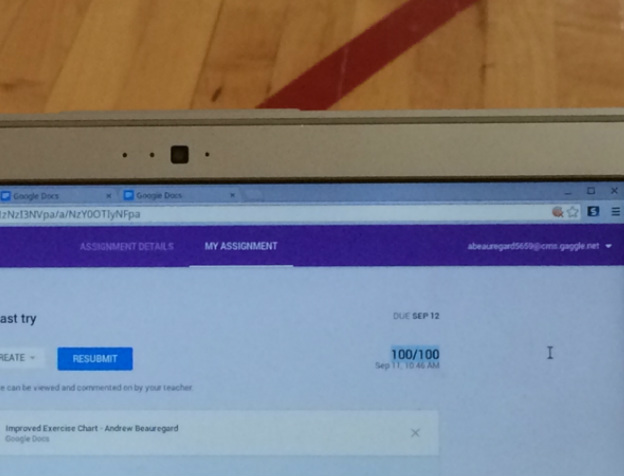
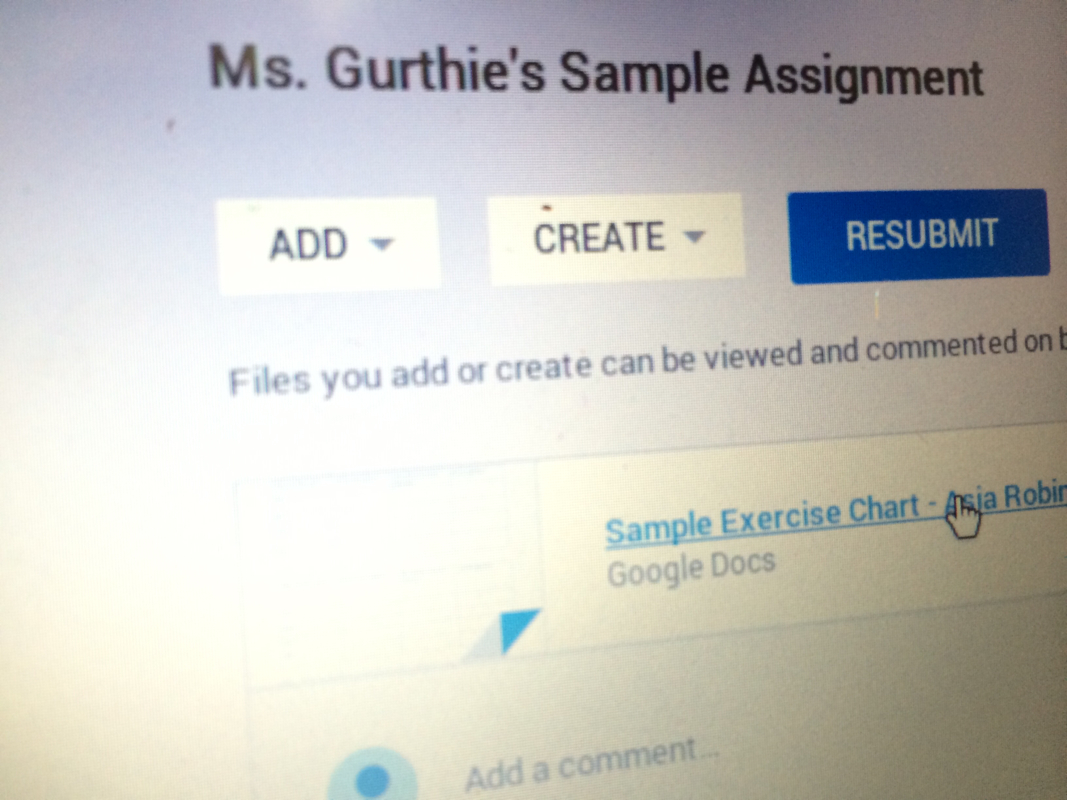
You can resubmit if you need to edit after you turned it in.
Picture
Make sure you sign out of the school device when you are done! (small square at bottom right)
Picture
Picture
Picture
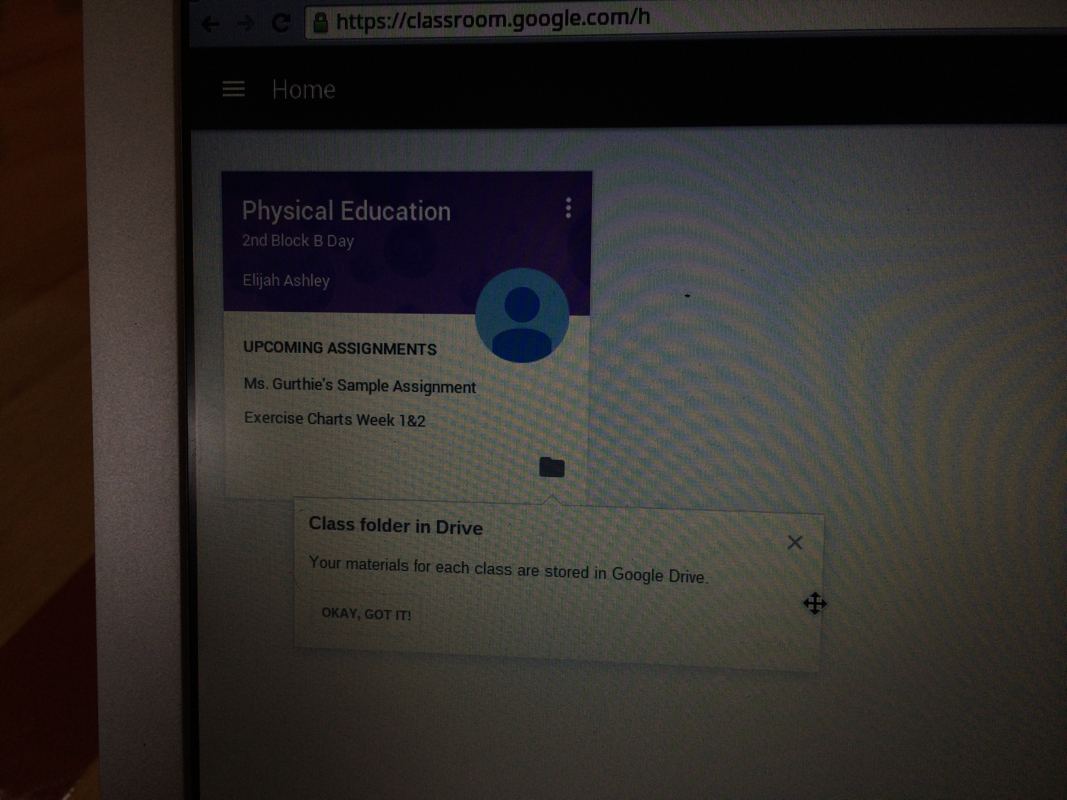
All your class documents are stored in the folder icon "the class folder"
Picture
Picture
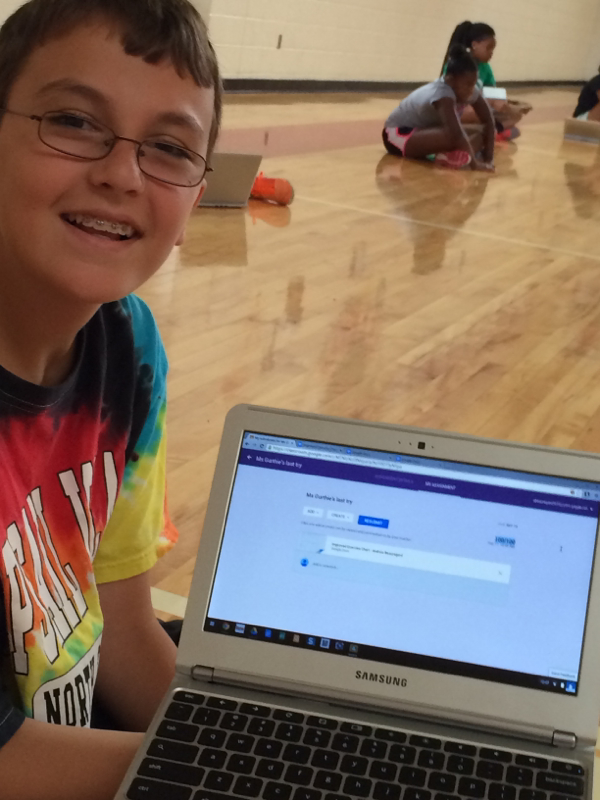
Once your teacher has graded the assignment, you will automatically see the grade.
4 Comments

    Categories

    All
    Active Learning
    App
    Character Ed
    Close Reading
    Common Core
    Critical Thinking
    Design Thinking
    Digital Citizenship
    Digital Literacy
    Fiction
    Google
    Interdisciplinary
    Maker
    Math
    Nonfiction
    PBL
    Pedagogy
    Problem Solving
    Reading
    Schoolwide
    Science
    Social Emotional Learing
    Socratic
    Sports
    STEAM
    Tech
    Test Prep
    Visual Literacy
    Whole Child

    Author

     I am Lisa Gurthie the PD facilitator at Piedmont IB Middle School. She specializes in tech and arts integration, interdisciplinary, holistic education, and unschooling school to make it more real and relevant. One day I will modernize my "about" page. Check out the other blogs on this site for Lesson Ideas, Celebration of Good Teaching, and Piedmont PD

    Archives

    February 2021
    November 2018
    April 2018
    March 2018
    February 2018
    October 2017
    June 2017
    March 2017
    February 2017
    September 2016
    August 2016
    June 2016
    May 2016
    February 2016
    January 2016
    October 2015
    September 2015
    June 2015
    May 2015
    April 2015
    March 2015
    February 2015
    January 2015
    October 2014
    September 2014
    August 2014
    May 2014
    April 2014
    March 2014
    February 2014
    January 2014

    Categories

    All
    Active Learning
    App
    Character Ed
    Close Reading
    Common Core
    Critical Thinking
    Design Thinking
    Digital Citizenship
    Digital Literacy
    Fiction
    Google
    Interdisciplinary
    Maker
    Math
    Nonfiction
    PBL
    Pedagogy
    Problem Solving
    Reading
    Schoolwide
    Science
    Social Emotional Learing
    Socratic
    Sports
    STEAM
    Tech
    Test Prep
    Visual Literacy
    Whole Child

    RSS Feed

Powered by Create your own unique website with customizable templates.
Photos from citymaus, The All-Nite Images, Lindy Buckley, peasap, Claudio Gennari ..."Cogli l'attimo ferma il tempo", mikemariano, faungg's photos, frankieleon, Chris Piascik, Kurisu, familymwr, kc7fys, el_itur, cowbite, eilonwy77, pestoverde, Marcin Wichary, Postmemes.com, alexliivet, UK in Italy, JoeInSouthernCA, Nathan O'Nions, jimmiehomeschoolmom, surreynews, Hans-Jörg von Schroeter, Bekathwia, CarbonNYC, marc falardeau, conorwithonen, LeonArts.at, Nina Matthews Photography, Georgie Pauwels, cwwycoff1, dullhunk, The All-Nite Images, Castles, Capes & Clones, warrenski, juhansonin, Ke7dbx, Muffet

  • Celebrating Piedmont
  • StudentSpace
  • Piedmont PD
  • Lesson Ideas
  • News and Thoughts