|
Are you considering trying a STEAM-infused student-choice-driven product into a curriculum that is usually paper and pen based? Ms. Brown and I use these talking points to introduce Maker Movement STEAM-infused learning into her sevent grade English Language Arts class for a novel project.
Here is the basic gist of how we introduced it together that you can adapt to suit your needs:
"The Maker Movement is something teachers are excited about in education because it gives you an opportunity to use your gifts that may not be traditionally gifts you can use or show off in school. Now some of you are straight A students (is it cool to be straight A? Yes it is!) and for you writing might be your gift. You should choose to re write the ending. Maybe writing is your thing but you are usually a songwriter - then write a song. Maybe you struggle with words but you are good at building. This is your chance to use that skill. Many people say that the future will need you to use your skills for entrepreneurship more than we had to in Ms. Brown and my's day. So you need to know what your good at and how to sell yourself as a brand so people will want to hire you. Don't choose the art choice if you don't have still in drawing. Don't wait til the last day and try to draw something on the bus when you have no skill, haven't made it special. If you know what makes you special, then do that. If you don't know come see me in the media center and I'll help you choose. One skill that is becoming more and more important is the skill of videography. (Tell story of $75,000 Belk Video Contest) If you'd like to do a video trailer of the book, I will be back next week to show you how. You need to really tell the story with video. Make a trailer, but don't make a video that doesn't really speak to the book or show your knowledge of the characters. Maybe you'd like to create a 3D Object- Choose the whirligig building choice. If you know someone who is good with tools and that is something you'd like to do ask them to help you build with wood. You can also just cut paper and straws. But whatever you do make it great. One of the points of maker movement is to use skills we don't always give you a chance to develop in school. You can code a whirligig in Scratch, engineer one to move, anything you want. But start work early so you have time to do a good job, or to fail and decide you want to change. Don't wait unitl the due date. Show off so I can post it and make you famous! Hopefully what you make will inspire other students to be their best and other teachers to try more projects like this.
RELATED POSTS: http://piedmontpd.weebly.com/celebrating-piedmont/whirligigs-an-example-of-maker-movement-in-education http://piedmontpd.weebly.com/lesson-ideas/have-students-make-a-movie http://piedmontpd.weebly.com/lesson-ideas/makerspace-resources4pbl http://piedmontpd.weebly.com/celebrating-piedmont/love-of-learning-at-piedmont
1 Comment
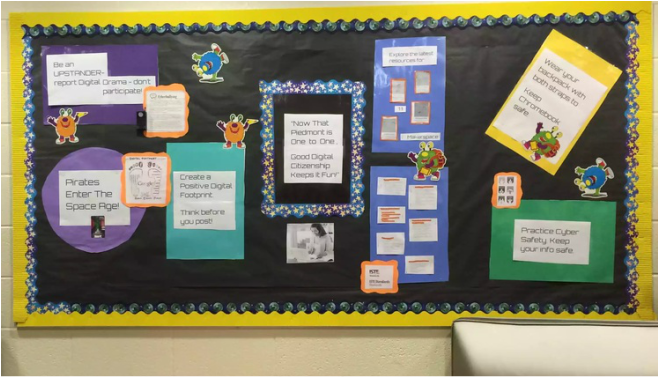 Ready Made LessonsIn light of us going 1:1 at Piedmont, here is a great site with plenty of lessons on digital citizenship for your to reinforce with your students. If you want a subject-specific lesson, see Lisa Gurthie and she can run one or help you embed it into your curriculum. http://wikieducator.org/Digital_Citizenship Select from one of these 10 topics then choose intermediate level for middle school lessons. 1. Defining digital citizenshipPrimary | Intermediate | Secondary 2. Basic ICT skillsPrimary | Intermediate | Secondary 3. Online safety, privacy and sharing Primary | Intermediate | Secondary 4. Copyright, copyleft & plagiarism Primary | Intermediate | Secondary5. Online relationshipsPrimary | Intermediate | Secondary 6. Online researchPrimary | Intermediate | Secondary 7. Critical thinkingPrimary | Intermediate | Secondary 8. Honesty, integrity and ethical behaviourPrimary | Intermediate | Secondary 9. Developing portfoliosPrimary | Intermediate | Secondary 10. Promoting digital citizenshipPrimary | Intermediate | Secondary Related Posts: More Digital Citizenship Resources: http://piedmontpd.weebly.com/lesson-ideas/digital-citizenship The lesson 7th grade science uses to introduce Digital Citizenship with an emphasis on Website Assessment: http://piedmontpd.weebly.com/lesson-ideas/intro-to-digital-citizenship-swim-theme Click the image to go to a list of great resources on the internet and privacy. 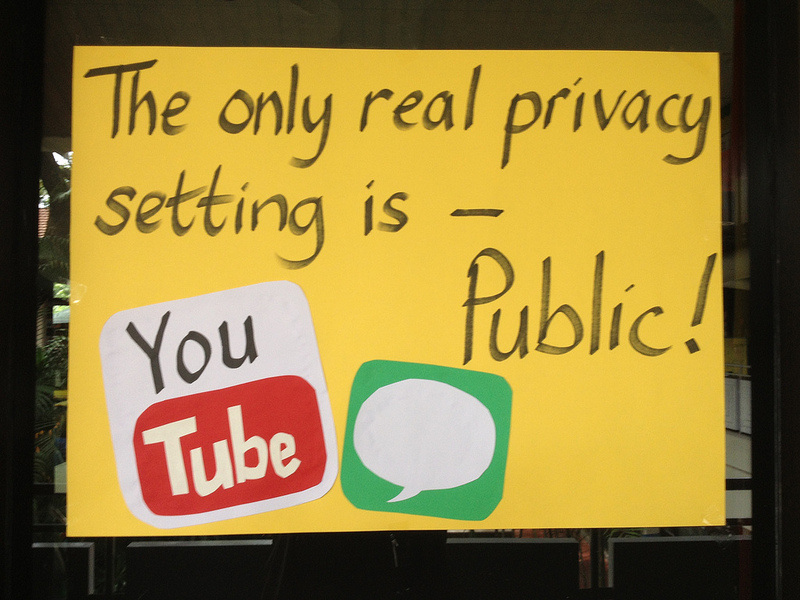 Many teachers here at Piedmont have used student-created movies to teach their content. Above are just two examples - a stop motion film of an scene from Seedfolks for Language arts and a video of a student created Minecraft Pyramid from Mrs. Kay's social studies Ancient Egypt unit. Try these lesson plans to get started
Our School Resources:
Recommended BYOT apps for movie making :
If using a shared ipad, you can upload and download the video as needed from Google Drive: (Sorry I ironically broke the cardinal rule of movie making - NEVER HOLD YOUR DEVICE LONGWAYS Learn from my mistake!) This video shows how to upload and share from your device This video shows how to turn in a video link for an assigment on Google Classroom  Modern life is caught up in media. We receive both and good and bad messages from many different mediums: TV Movies, Social Media and other internet sources.
One job of 21st century schooling is to teach students to be media savvy both in critically assessing what comes to them ("Fight the media!") and in being able to share their own clear positive message across different platforms for their "digital footprint" ("Don't fight the media!") With that in mind here are a few ways to integrate media messages into your content: Old School Meets New School Google Docs Newspaper Templates- Super easy now with Google Drive-- All students do to make a realistic newspaper is choose one of these templates while signed into google docs, then replace the "boilerplate" text and images with their own. done! More here http://www.scoop.it/t/creating-newspapers-in-the-classroom New School Gets Even More Fresh: Social Media and Movie Making Mrs. Stevenson is chock full of amazing ideas to freshen up content. Her history classes are full of modern life. Steal the following ideas from her like I did:
Basically any content you cover in class can be used by students to create humorous, moving and informational Vines, movies, gifs...allow students to create their own messages and then share what makes the best ones work. Let students know that all art is deriviative and you can "steal" the best ideas and make them your own and even better! That is what is considered growth. Not only are they motivated to learn when they are creating, they will also learn important lessons about visual literacy and persuasion that will serve them in any career they choose! Related: http://piedmontpd.weebly.com/lesson-ideas/intro-to-digital-citizenship-swim-theme http://piedmontpd.weebly.com/lesson-ideas/credible-sources-lesson http://piedmontpd.weebly.com/lesson-ideas/have-students-make-a-movie Many ready-made lessons on Diigital Citizenship here http://www.google.com/goodtoknow/web/curriculum/
My Ready-Made Lessons here
Digital Footprint Resources
Do you know that IQ is a myth? That the test was never meant to be given to neurologically healthy individuals and especially for it not to be used for ranking. Yes, there is such a thing as talent, but IQ is not fixed and everyone is gifted at something. Do your students know this? It's time to tell them because students who believe there is such a thing as "smart" or "dumb" do not try as hard as those who believe that smart can be achieved with effort. For more on growth mindset google Carol Dweck 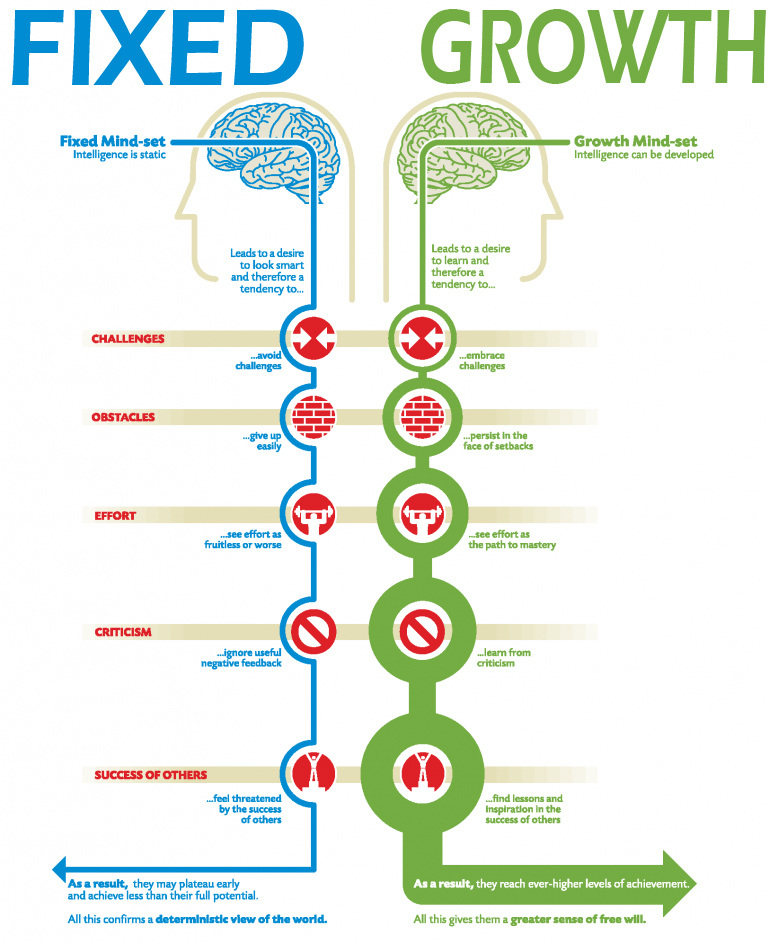 Following is a Youtube Playlist of videos that explain growth mindset. I am in a training right now that says we should explicitly teach students growth mindset. The video they used (in the playlist) is called Austin's Butterfly and it shows the butterfly images in the photo below. It illustrates how students can all get better over time with focused effort and constructive feedback. If you take time to show how this first grader improved his butterfly drawings from drawing one to drawing six, students will be more likely to trust that they will improve equally stunningly in your class. 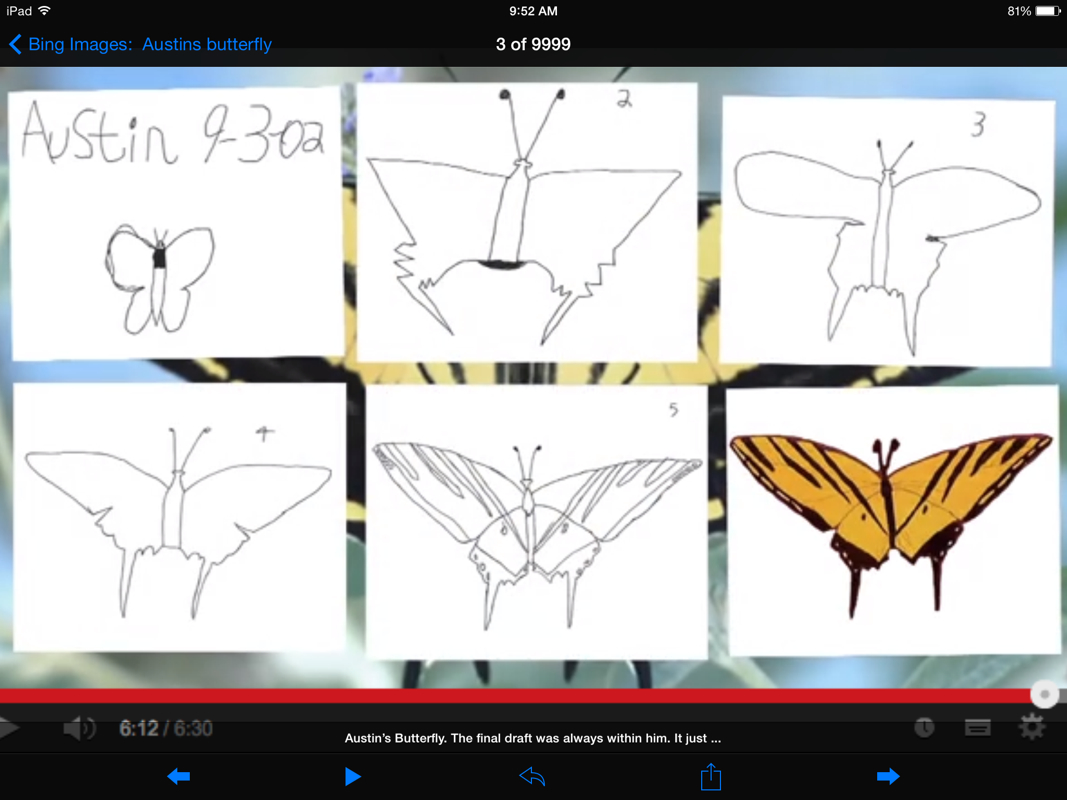 Another growth mindset example students might understand is the video game example. When a student starts out on level one and they die, they are not sad about it, they just keep going knowing full well that they will improve with practice. Help them transfer that surety and confidence to the effort they put into your classroom.
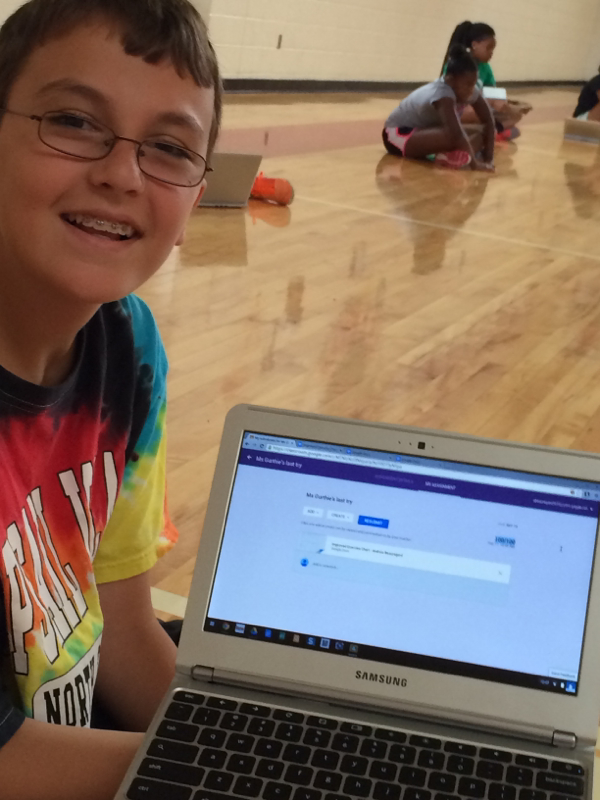
See me if you want to connect this to your actual content lesson in a more direct way or if you want me to come speak as a former psych teacher to your students about neuroplasticity (I can even tell them about the student I taught who LITERALLY had half a brain- and her entire brain rewired so you would never even notice!) 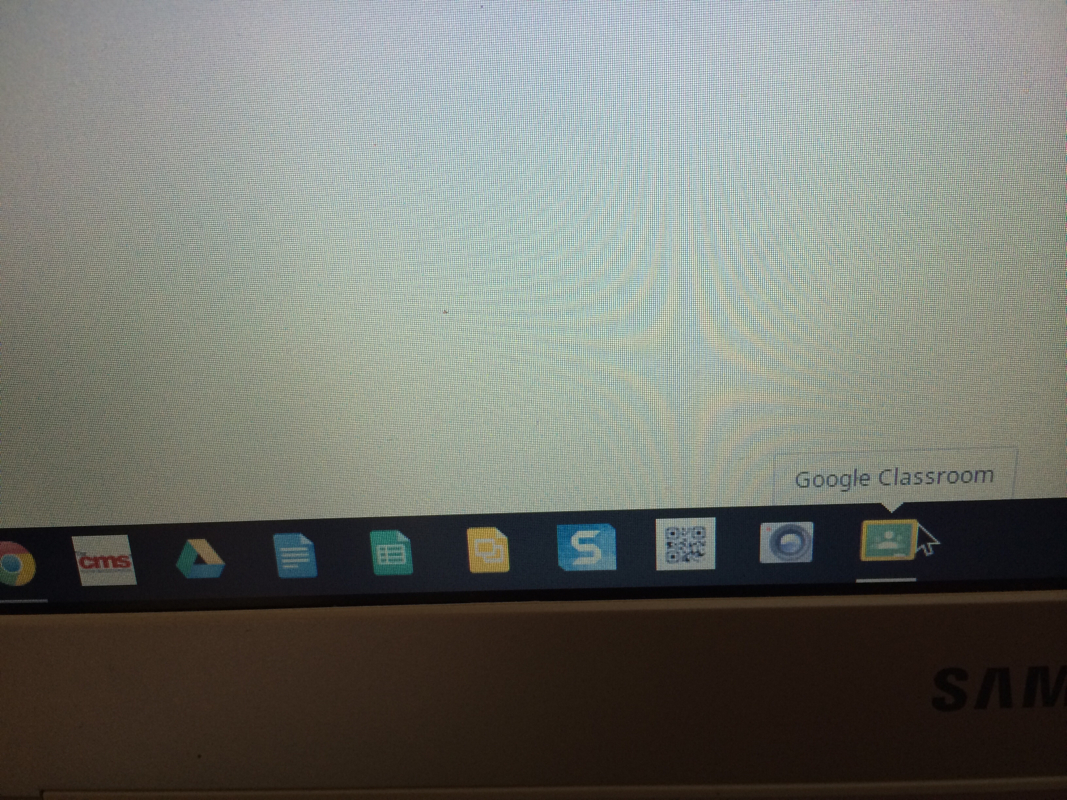 On a school chromebook? All you have to do is click the green chalkboard with the yellow outline at the bottom dock to go to classroom and you are automatically logged in. How to Join a Google Classroom:
* first time logging in scroll down the "welcome" page until you see the box that says "I'm a student" Click it and then you will see the plus sign (a chalk arrow points to it!) 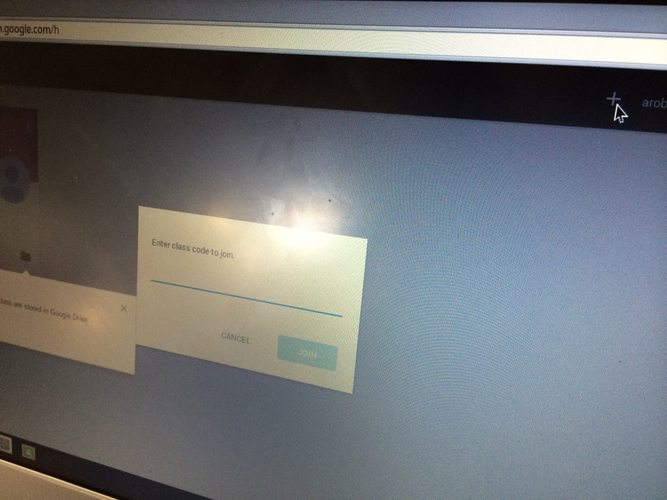 Click that plus sign and enter the code teacher gives you. 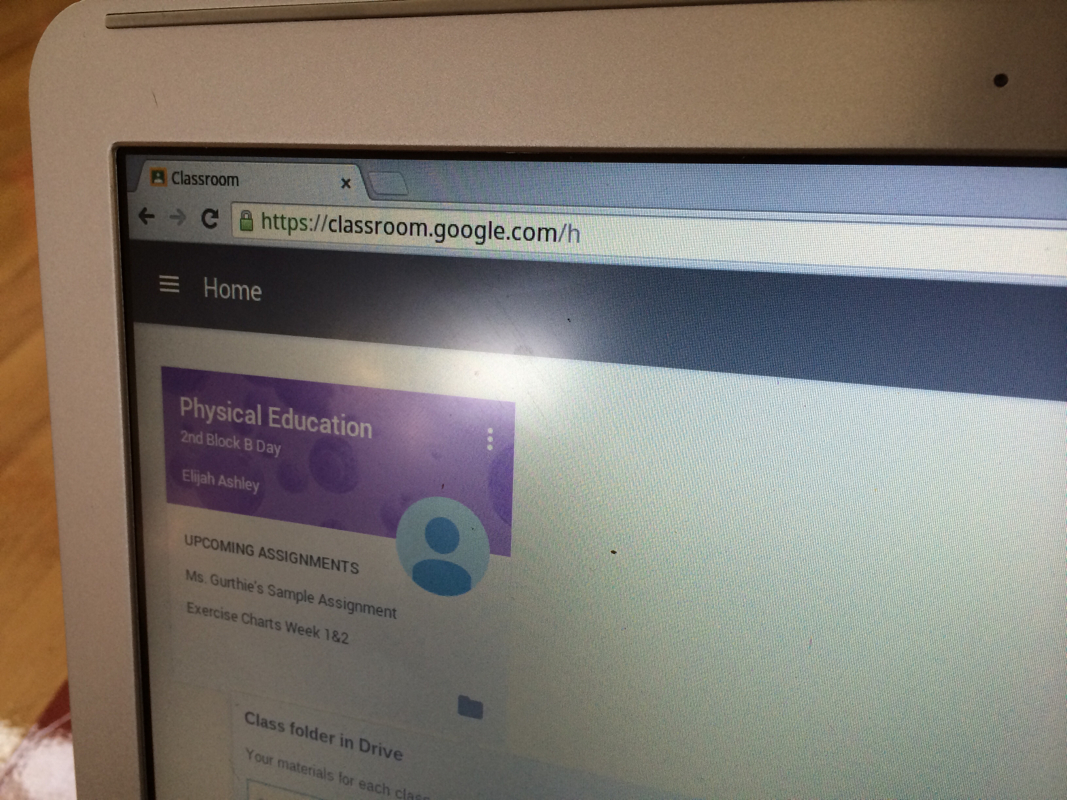 How to View and Submit Assignments in Google Classroom:
Note: After submitting an assigment, you will NO longer be able to edit the document! If you unsubmit in order to make changes AFTER the due date the work will now be seen as late. 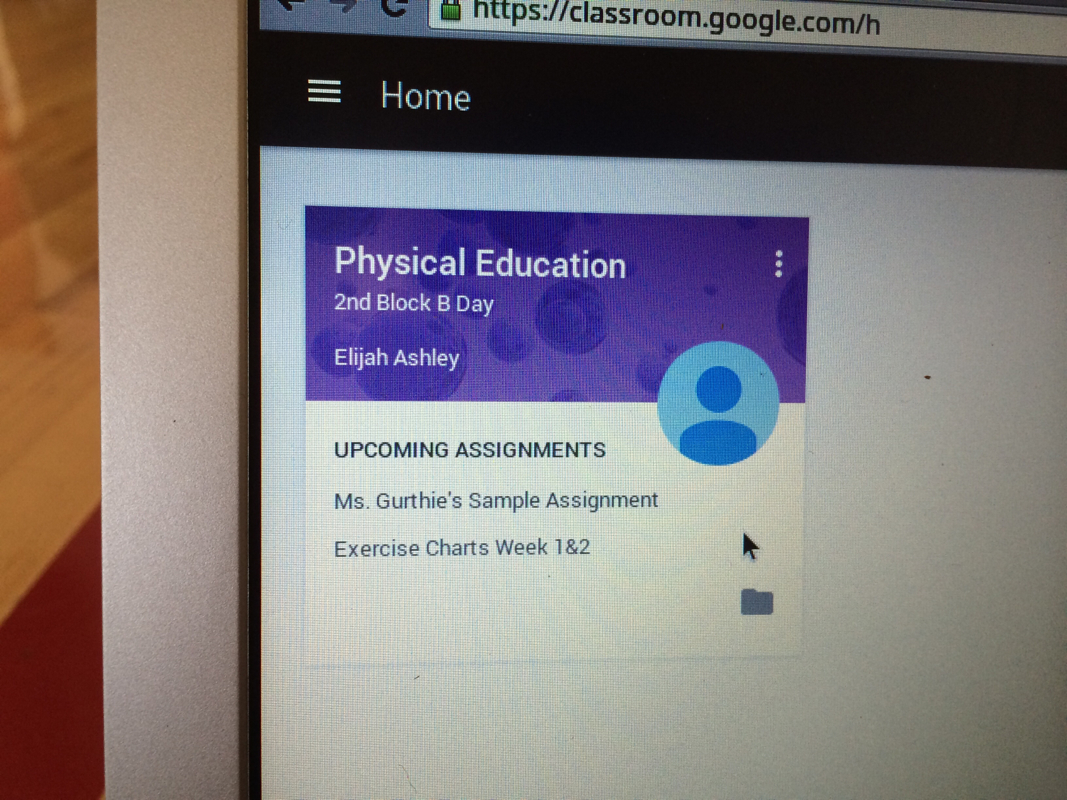 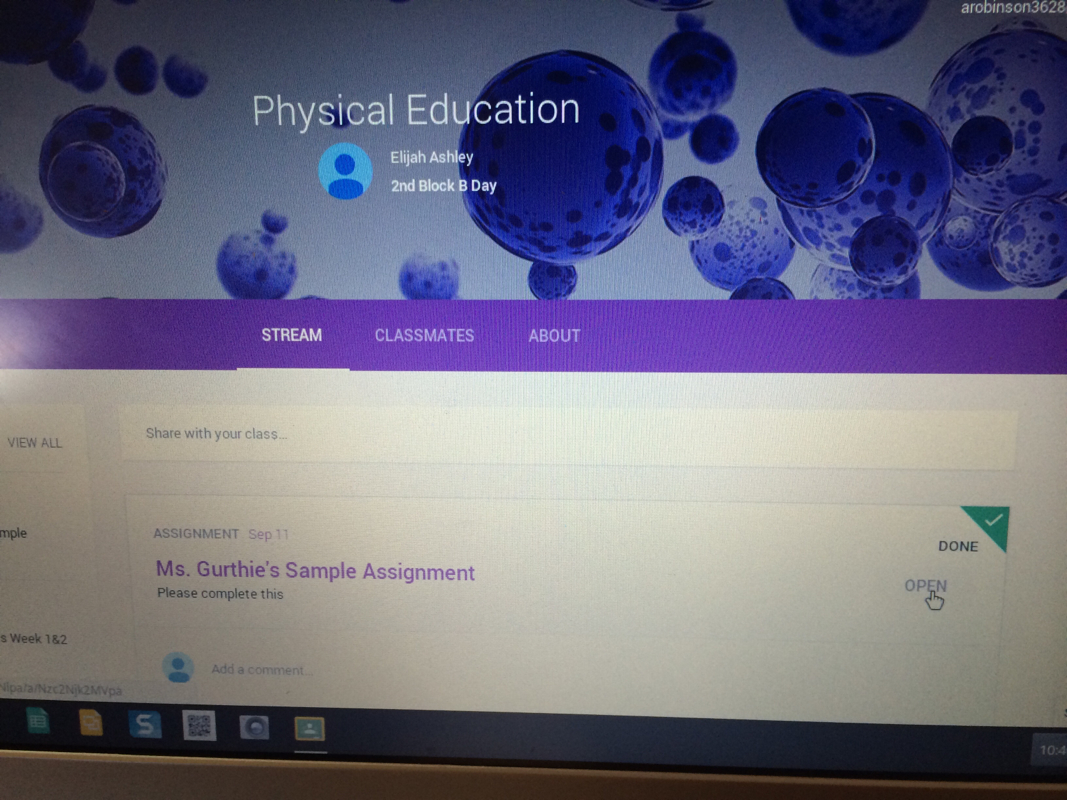 Make sure you open the assignment by clicking the "open" box to the right of the assigment name. This will allow you to edit any files your teacher has included! 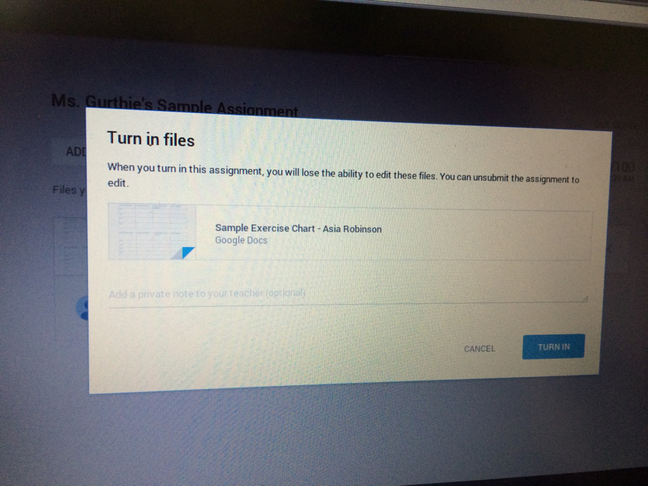 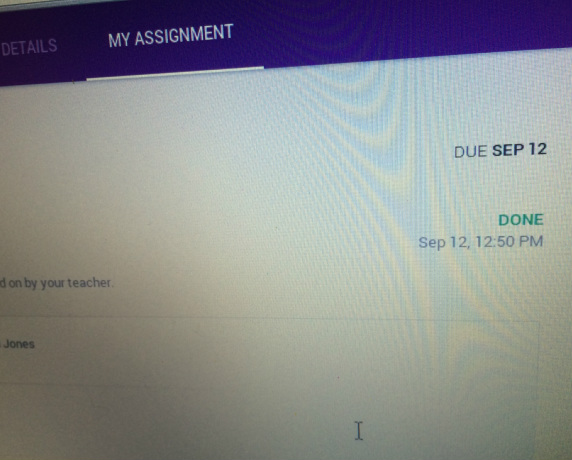 You Know you did it properly when you see the word "done" 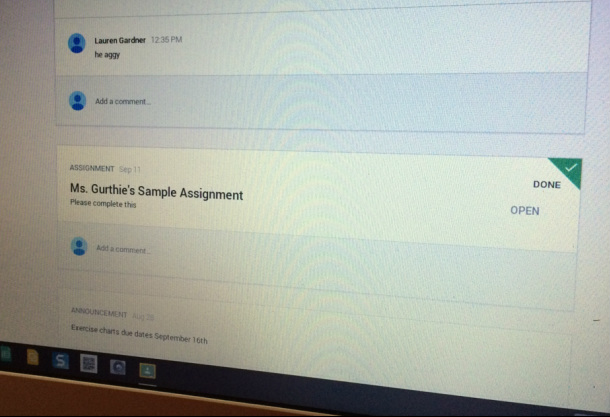 Hints: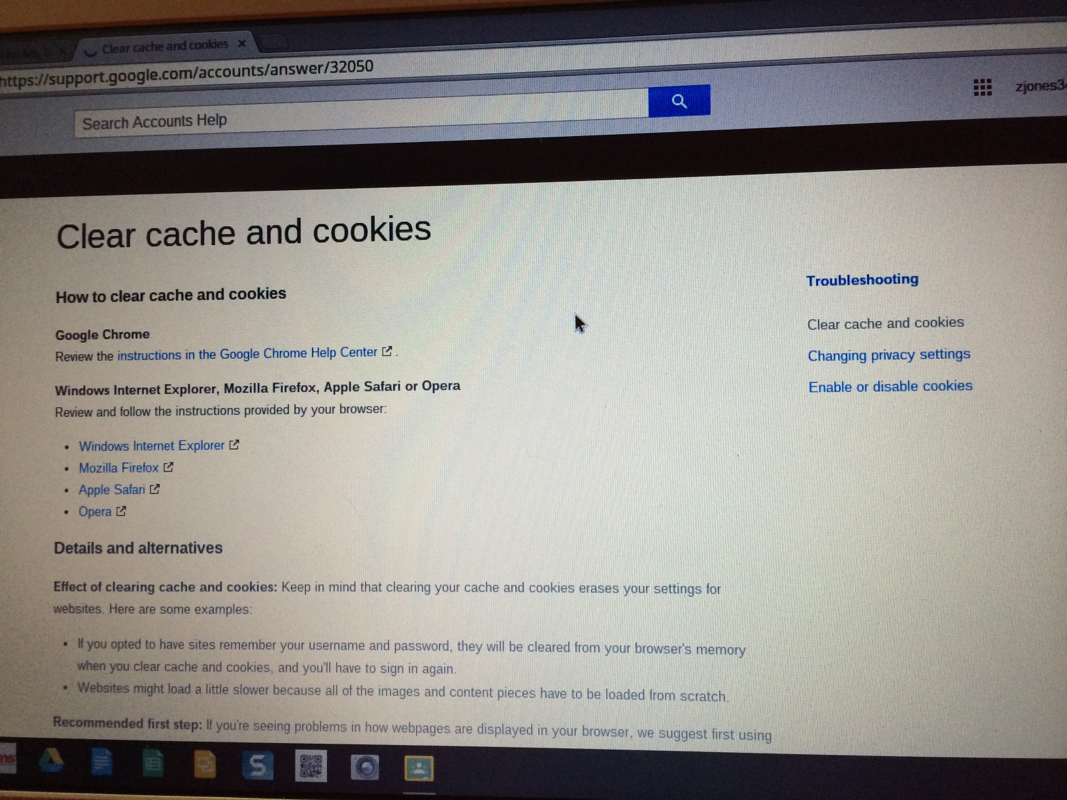 If weird things happen, you might need to go to History or settings of your browser and clear you cookies. If weird things happen, you might need to go to History or settings of your browser and clear you cookies.
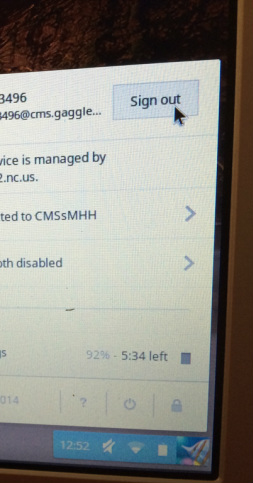
Thank you for helping us test it out! This will all make an amazing story to tell your grandkids when you are old "back in my day we used to have to turn in assigments by writing on paper! I remember when we first got Google Classroom..." Dont forget to sign out: 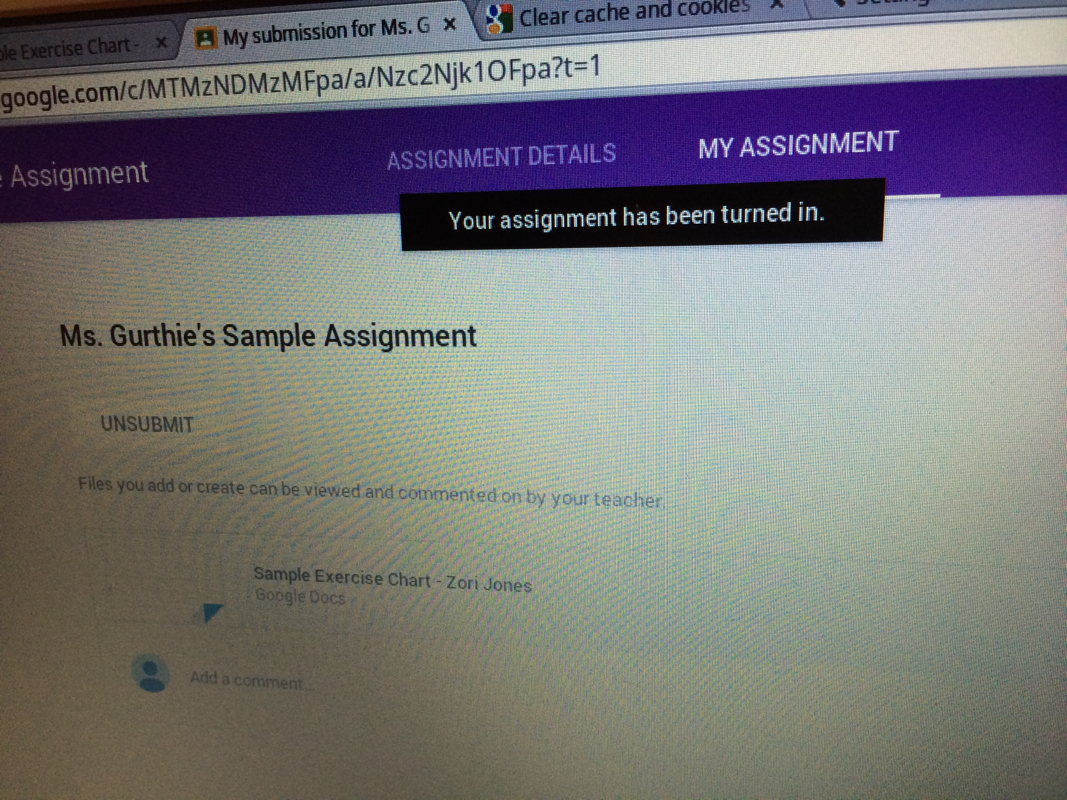 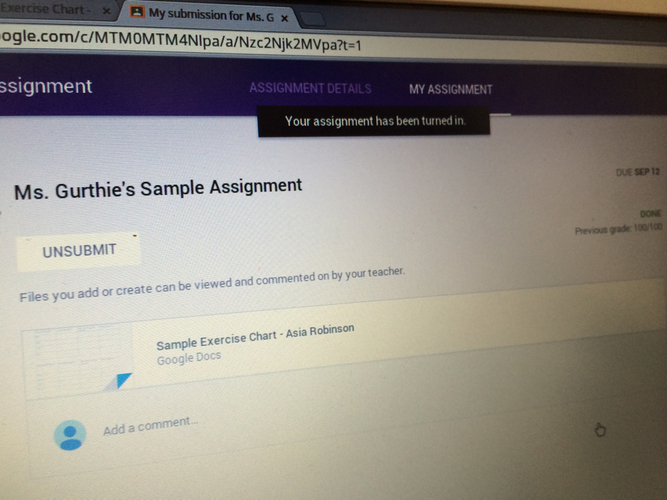 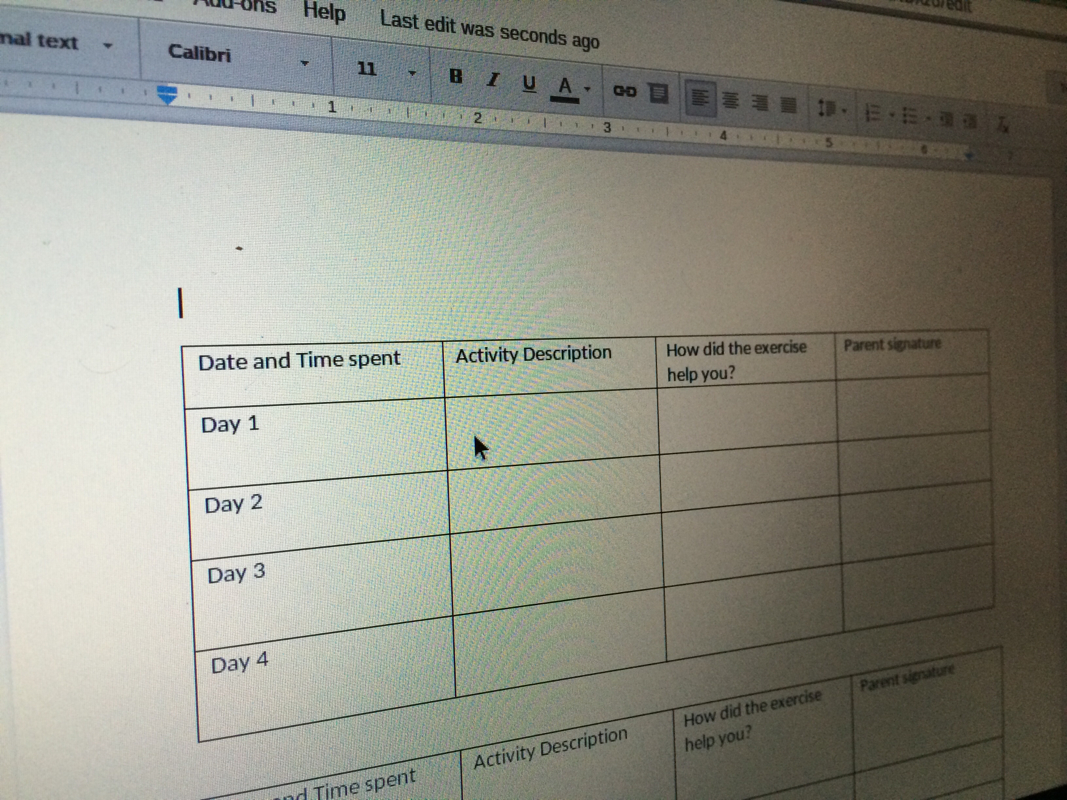 Your teacher may give you an assignment to edit or create a document as a group. 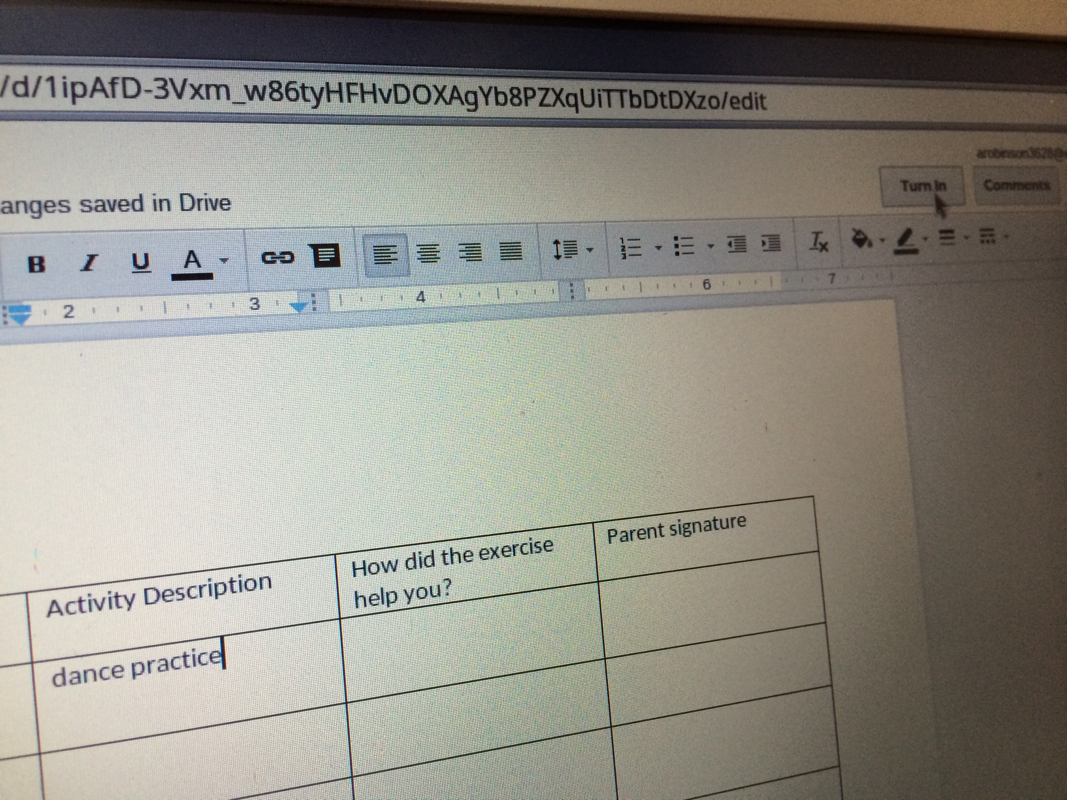 edit the document by waiting until the word processing toolbar loads and the curser moves and typing whatever you wish to add. All changes are automatically saved. When you are finished and ready to submit the work to your teacher, click "turn in" (top right) 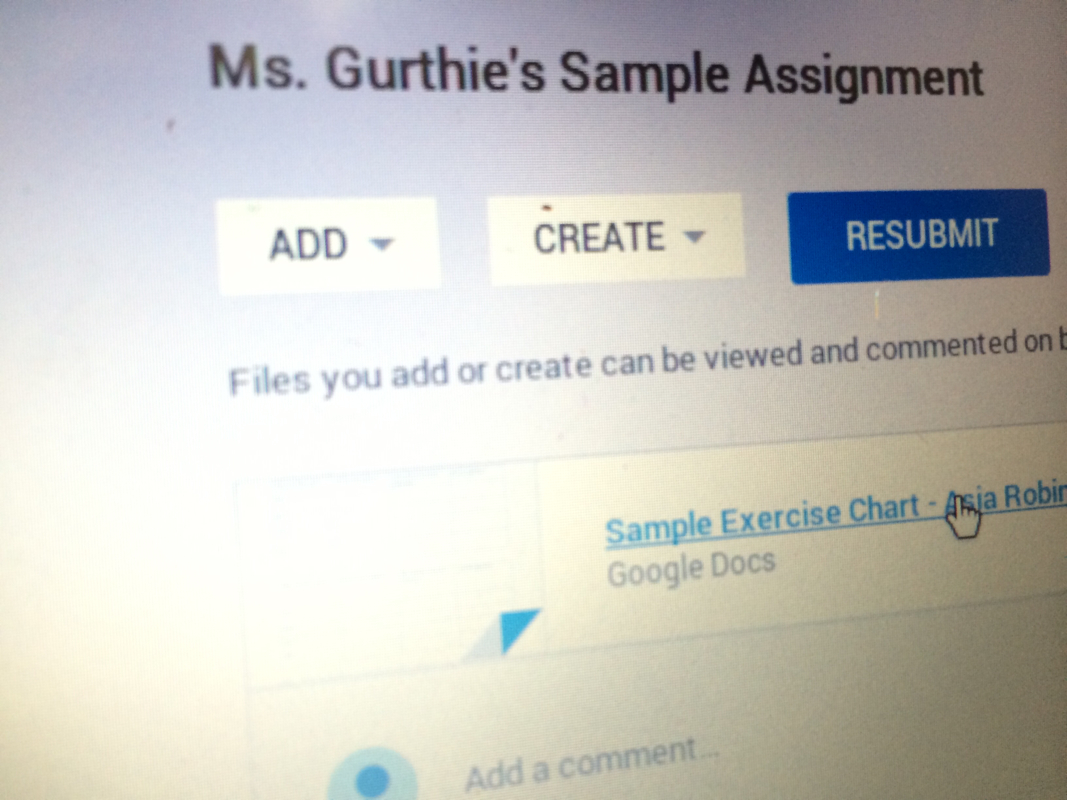 You can resubmit if you need to edit after you turned it in.
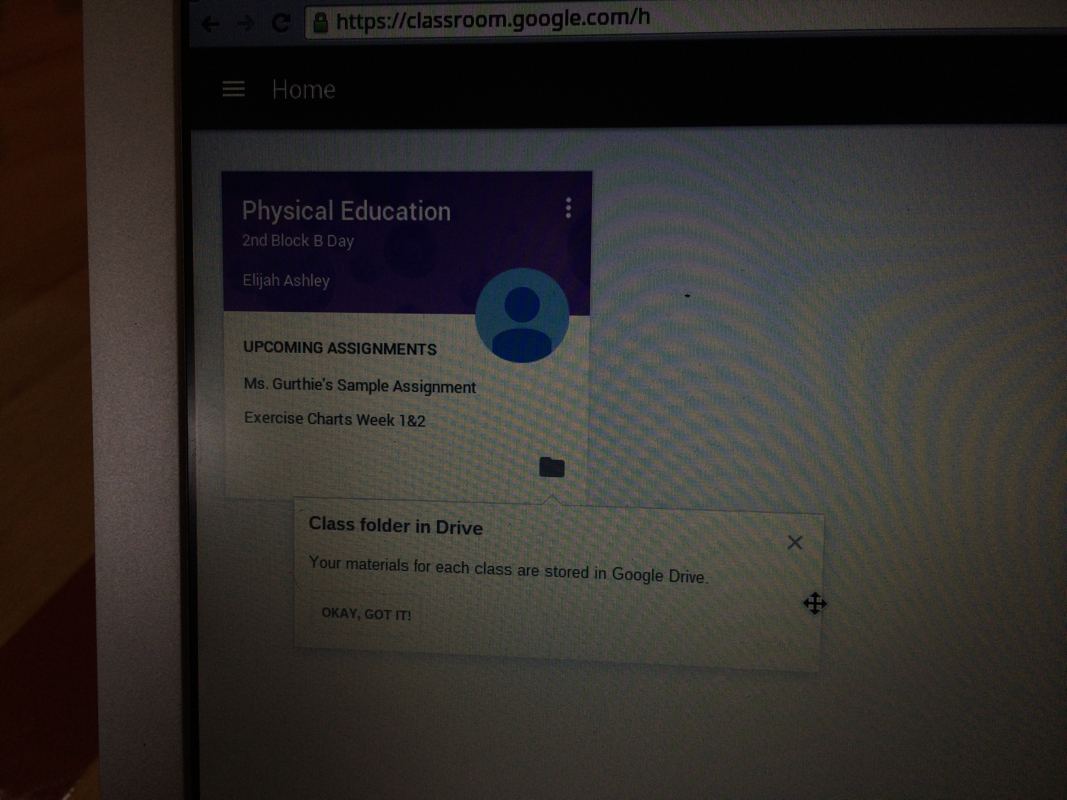 All your class documents are stored in the folder icon "the class folder"  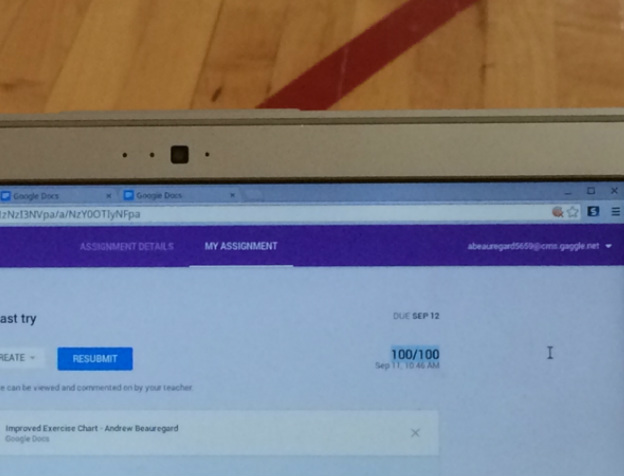 Once your teacher has graded the assignment, you will automatically see the grade. 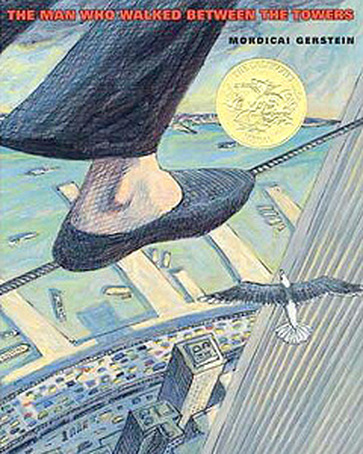 b22238Thanks to @btcostello05 on Twitter who pointed out to me that that this is the last year any k-8 students would have been born before 9/11. His school event and the members of his Voxer group also inspired this post. And thanks to@artlaflamme for suggesting the documentary. The following lesson was created after reading the children's book The Man Who Walked Between the Towers by Mordecai Gerstein. It tells the true story (nonfiction alert for your Common Core needs!) of Mr. Phillipe Petit walking the wires between the Twin Towers when the World Trade Center was first built. Documentary footage here The stunt embodies beautiful messages of hope in humanity and of optimism and creativity. It should inspire some good conversations if you read it and discuss with your class. It can be an accompaniment to a more traditional memorial lesson or a good note to end on that may help heal hurts. 5 Steps Lesson : 1- intro Introduce the purpose. "Today is 9/11 and on this day in history we memorialize those who died in the attack on the World Trade Center in New York City among other locations. The Twin towers were the tallest towers in the world - a quarter of a mile high. One little-known fact about them is that when they were first built, a high rope walker actually walked on a wire between them! He snuck up to their roof, shot an arrow with a wire on it across to his friends on the other tower and then performed for amazed onlookers for more than an hour in the sky! That daredevil's name is Phillipe Petit and he has some inspiring words for you about how to follow your dreams and achieve the impossible. 2- Read storybook and/or show one of the following video clips, depending on the ages or interests of your students:
3- Discussion Questions and larger lesson tie ins: "He looked not at the towers but at the space between them" Issue: Thinking "outside the box" and an artist temperament: Have you ever seen something totally differently than most people would? Do you see yourself as an artist in how you see things? Why or why not? "Of course he knew that ...the police and the owners of the towers would never allow it. You must be crazy! they would say. You'd fall for sure" Issue: Positive Deviance: Was he wrong to break the law? What is the role of public and private safety versus an artistic dream... Issue: How far should you go for a friend? for your job?: Would you have helped Phillipe carry the 440 lb reel of cable up 180 stairs to the roof if he was your friend? Would you have walked on the wire to stop him if you'd been a cop then? "Bad luck" thought Phillipe but he did not quit. Would you have quit trying amidst his setbacks? Should he have? How do you motivate yourself past your strings of 'bad luck?' do you believe in bad luck? good luck? "Though during his performance some boys playing on his wire jerked it and Phillipe fell...but caught himself" Have you ever done something accidental or on purpose that messed up someone else? How did you react? Have you ever "caught yourself" and fixed a problem that was about to be big? "He could feel the towers breathing. He was not afraid. He felt alone and happy and absolutely free" Issue: Figurative language: Why does the author say 'he could feel the towers breathing" when we all know towers don't breathe? He was not afraid Have you ever felt unafraid when others would be scared? When have you felt absolutely free? Issue: metacognition and taking another's point of view: Why do you think I read this book with you today? Why did we spend this time discussing it? How would you commemorate 9/11 if you were a teacher? 4- Physical activities:
Did you get a feel for Phillipe's bravery (see the added talks below for more on that) doing all that up in the air so high! Would you try high wire walking? What physical feats are you proud of/impressed by? 5- Conclusion and/ Links to Further Exploration: Let's all try to honor the victims of 9/11 today by not giving up when things seem hard and by believing in ourselves and our dreams. To learn more about what Mr. Petit can teach us, Click below To view Mr.Petit speaking (some adult language- please preview and show clips as needed) TED Talk-style on the highly educational topics of:
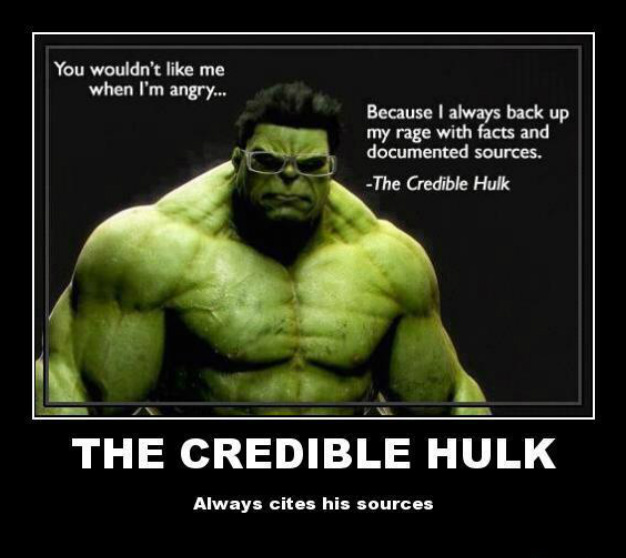 The days of teachers spouting simplistic short-sighted shortcuts like " No citing .com's -they are not respected academically" (shudder) or "Wikipedia can never be used for research" or even "there is nothing of academic value on Youtube" are thankfully over! This a lesson in credible sources relating it to real life scam awareness and digital citizenship on social media Lesson Plan: http://msgurthie.cmswiki.wikispaces.net/CriticalEvaluating Game -Dig Cit Forced Choices- both in social media and in academics Have you ever copied and pasted - words? -images into a slideshow? Used an entire song? (show google search by usage rights) Started a project at the last minute? Used easybib or other auto citation generator? Did you see any drama this summer? You liked it? You spoke out against it? Favorite social media site is instagram? etc LOL'd at a Vine this summer? (which one?) Living Life Online magazine The lap giraffe -discuss scams the sugar glider - real life animal but site is not credible- purpose the tree octopus -discuss capow To prevent being scammed, go "CAPOW!" to knock out" a bad website. Unlike "Kaboom!", "CAPOW" is an acronym to remind you to check a site against other reputable sites and google for... C-CURRENCY- is the info on the site recent? has it been maintained? You can tell by the "look" of it, by dates it has been updated, etc, by googling the info to see if it has been adjusted etc. A-AUTHORITY- Is this website one from an authoritative institution? Is it peer reviewed? is it well respected source? Google the exact web address--what kinds of other sites refer to this site? P-PURPOSE- Is this site trying to inform, persuade, argue? If the site is trying to sell you something, be aware. O-OBJECTIVITY-Is this site covering all sides of the topic fairly? If not that is fine, you can still use it, but your research is not done-be sure to go to a site that supports other points of view. W-WRITING STYLE: Misspellings, poor grammar, slang, are all signs that a site is not academic or may be a scam or a trick by someone not educated. If it is sloppy, it may have errors in its info or thinking as well. LET's CAPOW these together right now in class: DHM0 -discuss not taking the site's word for it and the difference between a lie and a bias RYThospital -discuss not taking shortcuts
 Emoji, hashtag webpage or superhero summary Create your own emoji or Emoji Sentence or instagram hashtag summarizing the best advice of today. #checkyourselfbeforeyouwreckyourself 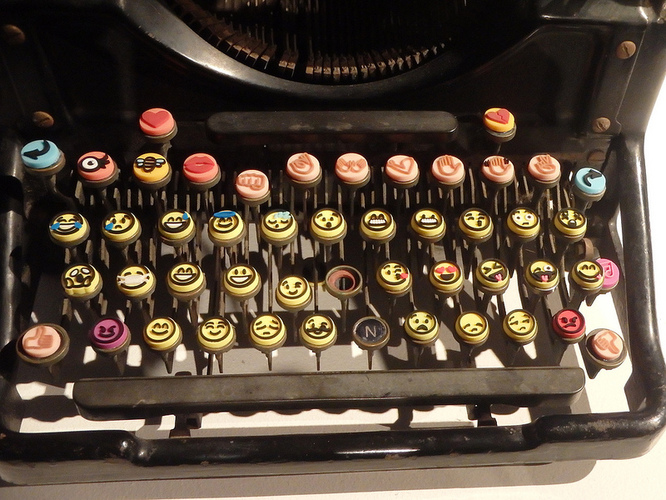  Social Media and Digital Literacy for Online Consumers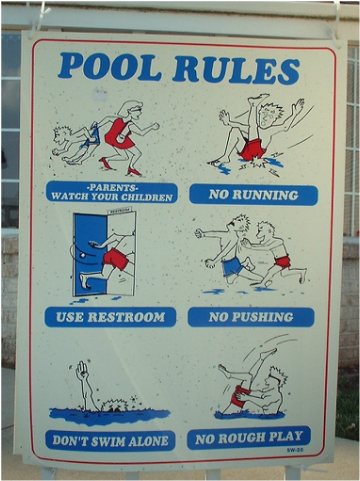 Click the image for the digital rules of the school, not the pool!
Part 1- Getting Your Feet Wet (your Digital Footprint) 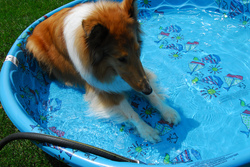 http://msgurthie.cmswiki.wikispaces.net/Your+Digital+Footprint Online your digital footprint is like a footprint in cement, not like water or sand! People WILL stalk your digital footprint and what you do never goes away. future schools future employers future sports teams parents of potential bofirends and girlfriends avoid negative and accentuate the positive better to not make the mess than to try to have to clean it up.-nothing is ever truly deleted (wayback machine, cache, screenshots, stolen passwords etc) Make sure that you are following digital citizenship guidelines so you can show off your best work as part of your digital footprint without a billl or a letter from a lawyer. Google image search, royalty free music etc. More in the Olympic section below
|
Categories
All
Author I am Lisa Gurthie the PD facilitator at Piedmont IB Middle School. She specializes in tech and arts integration, interdisciplinary, holistic education, and unschooling school to make it more real and relevant. One day I will modernize my "about" page. Check out the other blogs on this site for Lesson Ideas, Celebration of Good Teaching, and Piedmont PD Archives
November 2018
Categories
All
|



 RSS Feed
Photos used under Creative Commons from citymaus, The All-Nite Images, Lindy Buckley, peasap, Claudio Gennari ..."Cogli l'attimo ferma il tempo", mikemariano, faungg's photos, frankieleon, Chris Piascik, Kurisu, familymwr, kc7fys, el_itur, cowbite, eilonwy77, pestoverde, Marcin Wichary, Postmemes.com, alexliivet, UK in Italy, JoeInSouthernCA, Nathan O'Nions, jimmiehomeschoolmom, surreynews, Hans-Jörg von Schroeter, Bekathwia, CarbonNYC, marc falardeau, conorwithonen, LeonArts.at, Nina Matthews Photography, Georgie Pauwels, cwwycoff1, dullhunk, The All-Nite Images, Castles, Capes & Clones, warrenski, juhansonin
