|
We successfully completed a pilot of the CMS PL program last year. We will continue to have the support of Lisa Allred and the CMS PL team as we continue to learn how to personalize education.
If PL is something you've not really dealt with yet, you can begin by perusing resources at this link: http://pl.cmslearns.org/playbook/
For ready-made resources geared toward CMS middle school, check outthis Google Drive Folder of content specific ideas.
I was checking out the high school section and found this structural template that gives you an idea of one way to personalize that can be adjusted to any learning goal. Cutting Edge eduBonus, consider starting at "create!" If you would like 1 on 1 brainstorming, lesson demo, help team or unit planning, email me anytime. -Lisa Gurthie
Finally, we will be taking advantage of district led PL trainings this year. Please choose the training you are most interested in from these choices
http://goo.gl/vlFrLJ Cast Your Vote HERE
0 Comments
Web Tools and games that adjust to student's Level of Learning "Automated personalization" sounds like an oxymoron but when you use blended learning tools programs you remediate and enrich students without writing separate lesson plans.
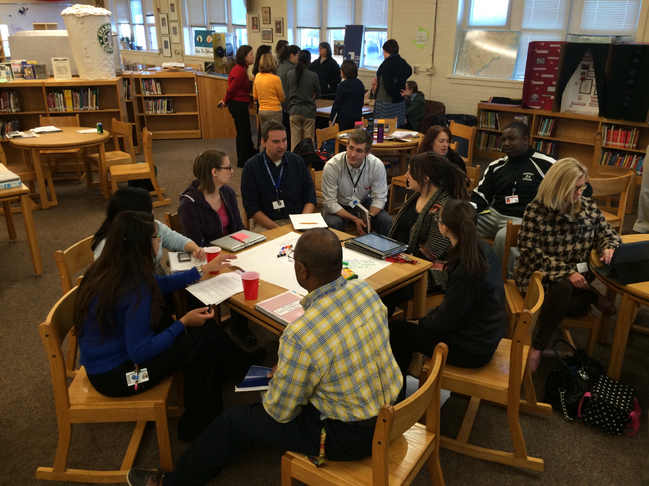
It gives students a supported challenge and sometimes a choice as well and makes personalization easy if you are trying to implement it on your own. the CMS Student Portal is one stop shopping for tech sites that will help your students. (If you don't know what all those tools are click here for definitions http://www.cmslearns.org/student-portal ) CMS logins and directions for Dreambox and Compass Learning - note student password changes if you are looking for a game or tool for a specific topic or objective (like this for DNA or this for multiple topics ) I will be happy to help you find one to suit your goals. More Tech Tools:Digital Classroom Resources http://www.cmslearns.org/digitalclassroom/ GAFE (Google Apps For Education) Google Docs, Google Classroom etc. Free Office 365 for CMS students and staff - up to 5 computers per login Related Links: Sites for Students to Save Your Sanity http://piedmontpd.weebly.com/lesson-ideas/sites-for-your-students A Primer on Blendspace http://piedmontpd.weebly.com/lesson-ideas/blendspace-bailey-style Real Teachers Talk Tech Tools http://piedmontpd.weebly.com/news-and-thoughts/1 We're 1:1 now what http://piedmontpd.weebly.com/piedmont-pd/11-now-what Chromebook Rollout and Tools http://piedmontpd.weebly.com/piedmont-pd/11-chromebook-rollout includes the student a-z and teacher a-z guides. 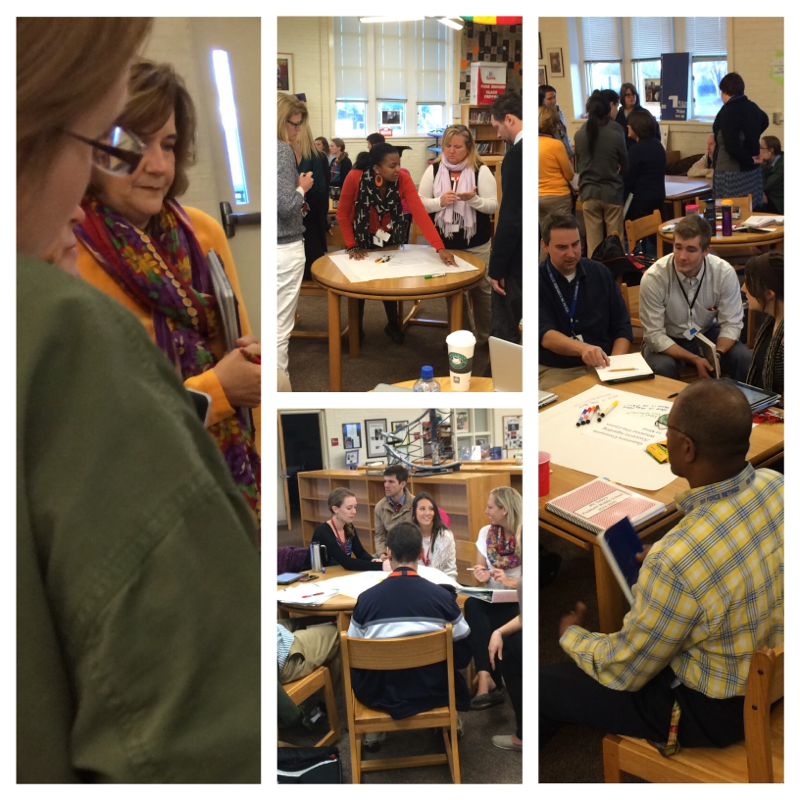 Piedmont PLC's diligently prepare for 1:1 Chromebook Rollout after winning the Early Adopter Grant from CMS.
 Feel free to ease into the new world of 1:1. You will soon discover that having the world at your students' fingertips, no tech reservations necessary is a great benefit to your classroom but don't forget we are still Piedmont and students should not be behind a screen all day, we are still active collaborative IB learners! See Lisa Gurthie if you would like a specific PD. She can offer that in person, online, small group or team based. 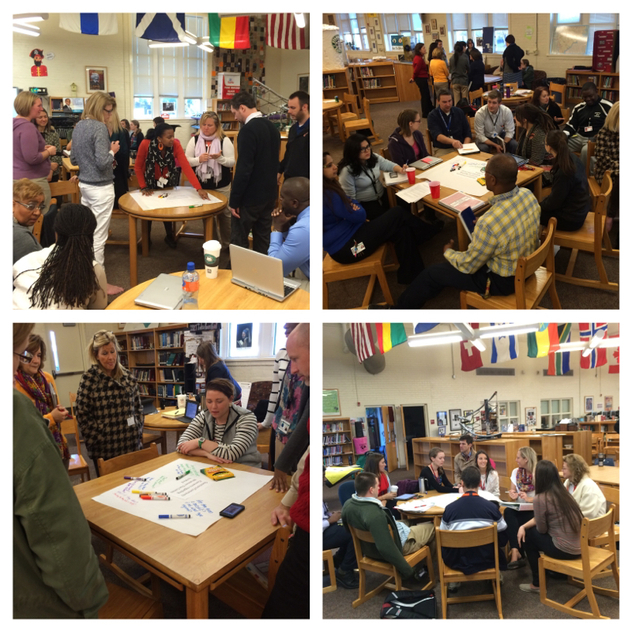
   You can now earn professional development renewal credits from the comfort of your home or mobile device with Piedmont's new online professional development offerings.
Separate self-paced assignments for the latest IBO training webinars are now available on the Piedmont Google Classroom PD site. The online Google Classroom for Course 1 - IB Webinars 1-5 is running now . Course 2- IB Webinars 5-10 will be offered next year. All you have to do is go to classroom.google.com, login with your work email and Google Drive password, click the + sign at the top of the home screen and join with the code that was listed in your weekly bulletin (see Lisa Gurthie if you need the code) and start earning at your own pace. Each of the 5 Google Classroom assignments consists of:
Start learning and earning today from the comfort of your own home! Information about how to receive credit in MyTalent will be forthcoming as soon as the course is available on that site. Related posts: 5 Easy Steps To Add a File to Drive: Step 1- Log into your Google Drive so it will be open when you need it. Step 2- Go to your download list, documents or even thumb drive list, Step 3 - Click and hold the file name you wish to add Step 4- Drag it to the Google Drive Screen Step 5- Let it go That's it! It' "drops" into Drive and you see a big blue dot as it uploads. They are there forever and you are now FREE to delete them (because I know half of you have run out of district document storage space on your school computers - and don't even get me started on your email space- you can now download all those attachments you've been saving in your email, drag them into google drive and delete!!! How easy is that? Here's how it looks with Downloaded Files (using Google Chrome but will work from other browsers): And here's how it works from your documents library (file folder icon at the bottom of our Windows 7 school computers) If you want to convert those files make sure you have that turned on in settings. More info about that and how to publish to the web from Drive here http://piedmontpd.weebly.com/piedmont-pd/how-to-publish-to-the-web-and-embed-with-drive
You and your students can shorten or QR code anything that has a web address - anything on evernote, google drive, your webpage, a public website or Youtube video or anywhere! ( to learn how to publish to the web and embed go here http://piedmontpd.weebly.com/piedmont-pd/how-to-publish-to-the-web-and-embed-with-drive . 5 Easy Steps:
Anyone with a free scanning app available in their app store will be able to use it to immediately view your document, form, survey, presentation, augmented reality, animation, image or whatever! See me if you want a tutorial! Thanks to the wise helpful and tech savvy Mrs. Winegardner for the info on how to do this now that bit.ly is shut down. Thanks to Mrs. Marshall for being the catalyst for this lesson and for being a great person all the time who makes me healthier just knowing her. If you'd like your slideshows, documents, surveys, or other to be instantly viewable for anyone straignt from your website, here are directions: First upload the item to the web as shown here http://piedmontpd.weebly.com/piedmont-pd/easiest-way-to-add-files-to-your-google-drive here is how to do that from Google Drive and get the code from Google Drive by "Publishing to the Web": Here is how to paste the code into Wikispaces and Weebly so you can see it on your site. to get and embed code from Youtube You can do the same thing with photos too The only annoying thing about Google Drive last year was the pain of getting students to turn their work in properly and to the right email and most of those issues are solved with Classroom. Here's how to get started: How to Create a Class:
How to create an assignment and attach a file: This video shows how to attach a file for students to complete. you can also attach it so students can just read it or edit it together: More Resources for Understanding Google Classroom:
How to Introduce it to Students:
follow these instructions or share this link with them http://piedmontpd.weebly.com/lesson-ideas/student-introduction-to-google-classroom |
AuthorThis blog is a compendium of District and Piedmont -specific PD opportunities, trainings, and notes. Archives
November 2019
Categories
All
|
 RSS Feed
Photos from docoverachiever, memebinge, Ivy Dawned, www.ilkkajukarainen.fi, Muffet, Diana Boucino, Stephane .Jaspert, sanazmy97, kevin dooley, Mike Licht, NotionsCapital.com, studiohzwei, The Daring Librarian, bobbi vie, madnzany, lisibo, Tjeerd, Nicola since 1972, Brett Jordan, ~Matt LightJam {Mattia Merlo}, denise carbonell, The Lex Talionis, Toolstotal, liverpoolhls, Ninara
